> For the complete documentation index, see [llms.txt](https://docs.oxygenserv.com/llms.txt). Markdown versions of documentation pages are available by appending `.md` to page URLs; this page is available as [Markdown](https://docs.oxygenserv.com/dashboard/acceder-aux-fichiers-de-mon-serveur-ftp-avec-filezilla.md).

# Accéder aux fichiers de mon serveur en FTP avec FileZilla

Guide pas à pas pour accéder aux fichiers de votre serveur Oxygenserv en FTP avec FileZilla.

{% hint style="info" %}
FileZilla est un client FTP simple. Il permet d’accéder aux fichiers de votre serveur Oxygenserv. Vous pouvez envoyer, télécharger et modifier vos fichiers.
{% endhint %}

### Objectif

Accéder aux fichiers de votre serveur via FTP. Par exemple pour modifier une configuration, ajouter des mods ou récupérer une sauvegarde.

### Guide pas à pas

{% stepper %}
{% step %}
**Installer FileZilla**

Téléchargez FileZilla depuis le site officiel : <https://filezilla-project.org/>

Installez la version “FileZilla Client”. Elle est disponible pour Windows, macOS et Linux.
{% endstep %}

{% step %}
**Récupérer vos identifiants FTP sur le dashboard**

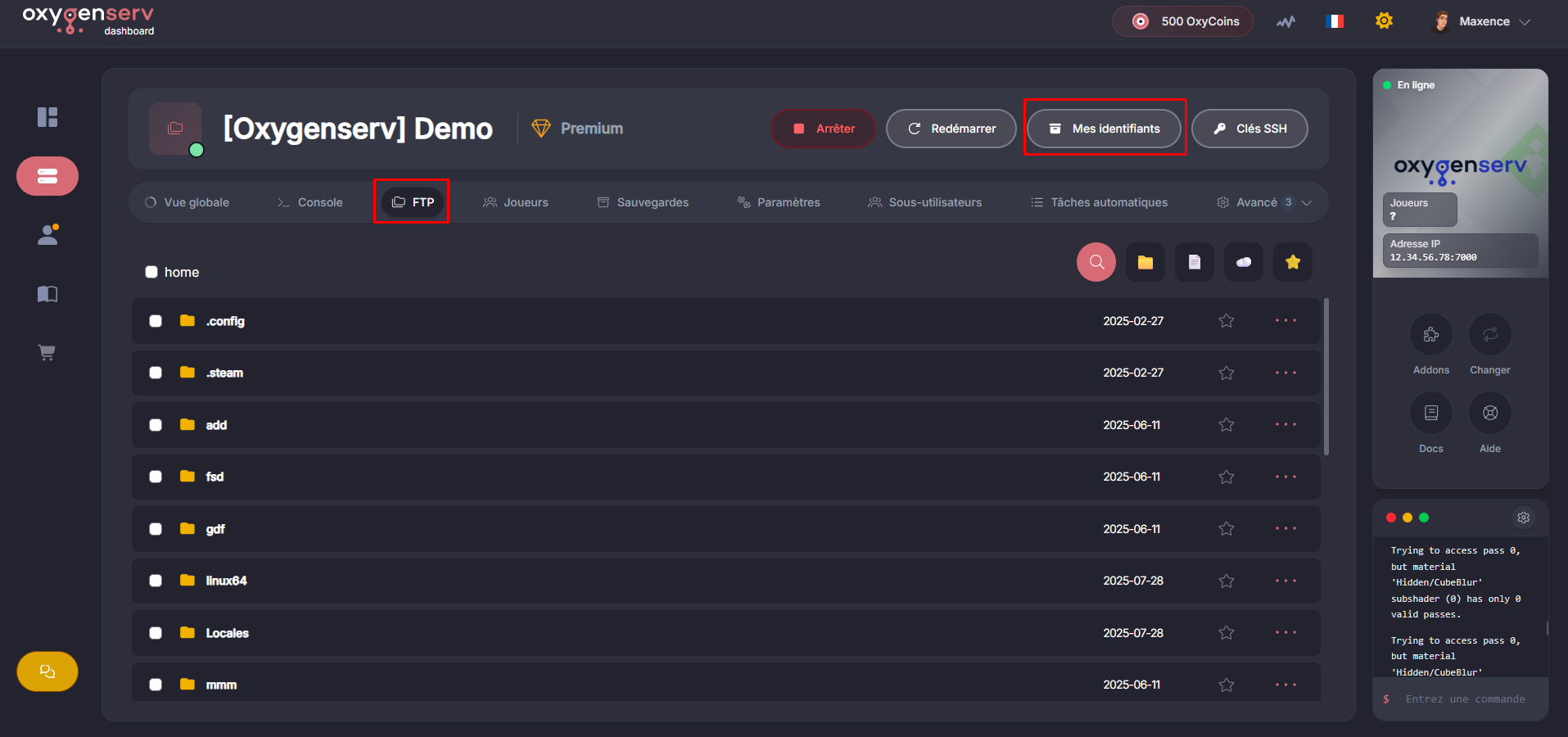
Sur le dashboard, allez dans **FTP** puis **Mes identifiants**. Vous y trouverez :

* **L'adresse du serveur**
* **Le port d'accès**
* **Votre identifiant**
* **Votre mot de passe**

<figure><img src="https://502772990-files.gitbook.io/~/files/v0/b/gitbook-x-prod.appspot.com/o/spaces%2Ftkl0lsnxYxJPTz5fY4IW%2Fuploads%2Fgit-blob-109c337c5a74a68cf21067788faab8891fa17eb9%2Fimage_38.png?alt=media" alt=""><figcaption></figcaption></figure>

{% hint style="warning" %}
Ne partagez pas vos identifiants FTP. Créez plutôt un sous-utilisateur avec les droits minimum : [Ajouter des sous-utilisateurs sur son serveur](/dashboard/ajouter-des-sous-utilisateurs-sur-mon-serveur.md).
{% endhint %}
{% endstep %}

{% step %}
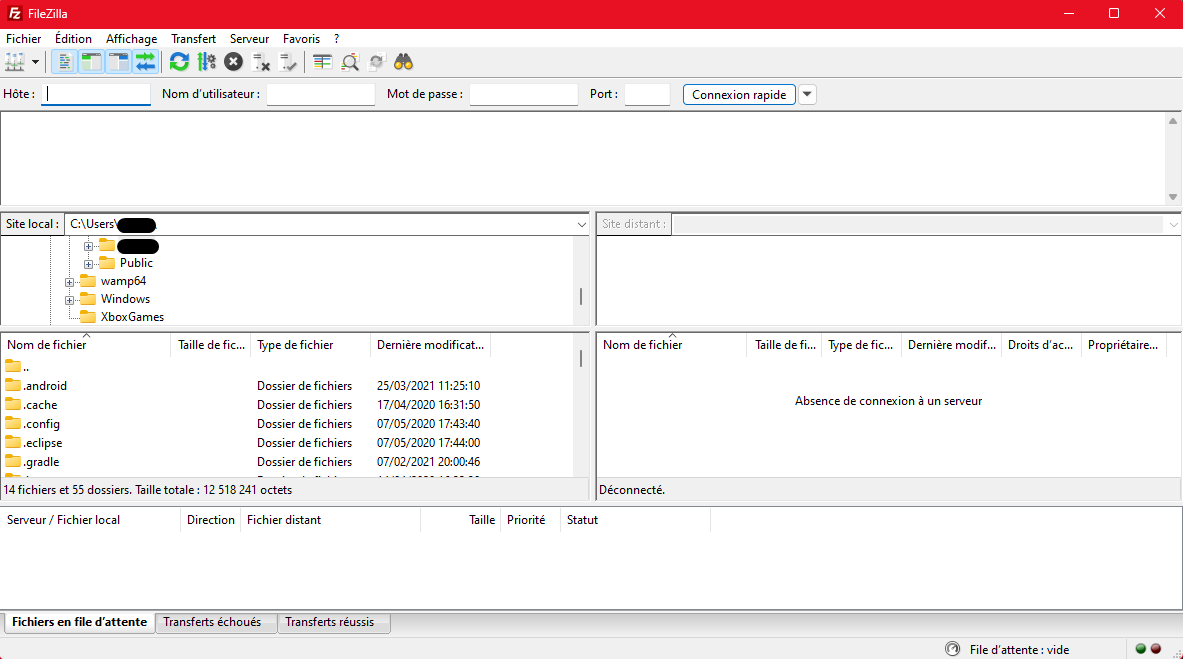
**Ouvrir FileZilla**

<figure><img src="https://502772990-files.gitbook.io/~/files/v0/b/gitbook-x-prod.appspot.com/o/spaces%2Ftkl0lsnxYxJPTz5fY4IW%2Fuploads%2Fgit-blob-1d47e8af16f661e7548bc0aa1ef0ab6f6808a655%2Fimage_5.png?alt=media" alt=""><figcaption></figcaption></figure>
{% endstep %}

{% step %}
**Se connecter au serveur FTP**

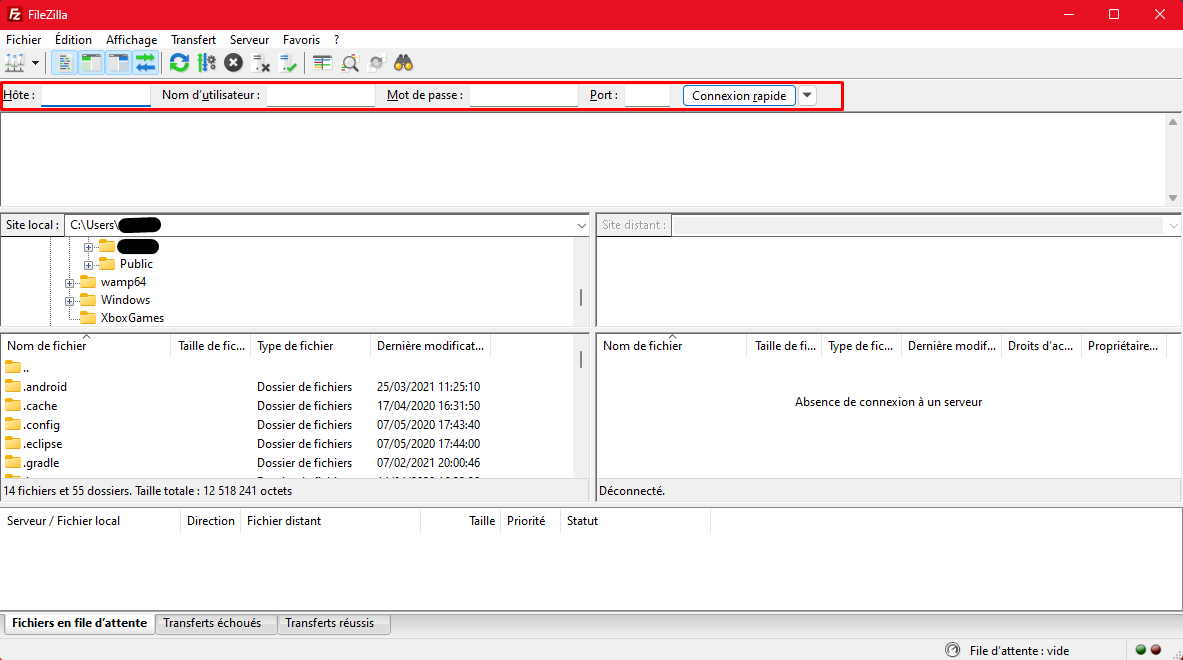
Dans la barre “Connexion rapide”, renseignez :

* **Hôte**
* **Nom d'utilisateur**
* **Mot de passe**
* **Port**

Puis cliquez sur **Connexion rapide**.

<figure><img src="https://502772990-files.gitbook.io/~/files/v0/b/gitbook-x-prod.appspot.com/o/spaces%2Ftkl0lsnxYxJPTz5fY4IW%2Fuploads%2Fgit-blob-6728b428384797988fff01e8e81d8a7054761402%2Fimage_6.png?alt=media" alt=""><figcaption></figcaption></figure>
{% endstep %}

{% step %}
**Transférer des fichiers (upload / download)**

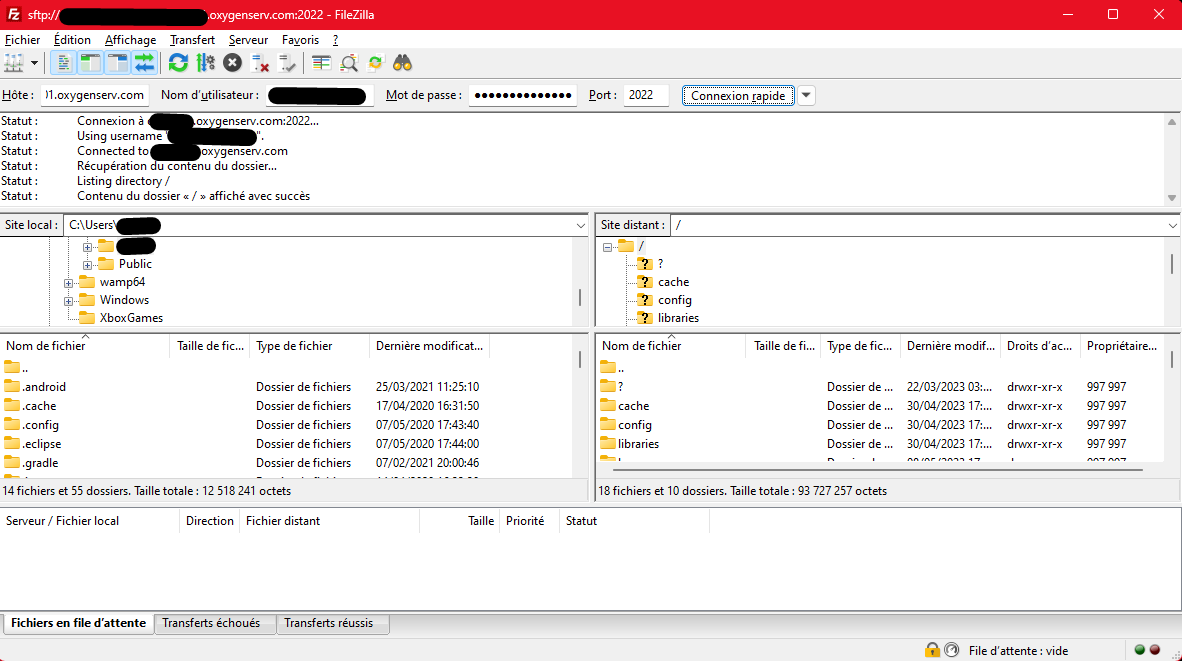
Maintenant que vous êtes connecté à votre serveur FTP, vous pouvez transférer des fichiers entre votre ordinateur local et le serveur distant. Voici comment procéder :

* **Naviguer** : ouvrez les dossiers côté local ou distant.
* **Télécharger** : clic droit côté distant → **Télécharger**.
* **Envoyer** : clic droit côté local → **Envoyer**.
* **Suivre les transferts** : onglet **Transferts** en bas.

<figure><img src="https://502772990-files.gitbook.io/~/files/v0/b/gitbook-x-prod.appspot.com/o/spaces%2Ftkl0lsnxYxJPTz5fY4IW%2Fuploads%2Fgit-blob-2828ad39c098bf82ac8a4480a9866fb75669bb3b%2Fimage_7.png?alt=media" alt=""><figcaption></figcaption></figure>

{% hint style="info" %}
Avant de modifier un fichier important, gardez une copie locale. Ça aide si vous devez revenir en arrière.
{% endhint %}
{% endstep %}
{% endstepper %}

### Problèmes fréquents

* **Identifiants invalides** : retapez l’utilisateur et le mot de passe du dashboard.
* **Mauvais hôte** : utilisez l’hôte/IP affiché dans la section FTP.
* **Timeout / refus de connexion** : retentez quelques minutes plus tard.

### FAQ

#### Je dois envoyer quoi au support si ça ne marche pas ?

Une capture de FileZilla avec l’erreur et l’heure du test.

---

# Agent Instructions
This documentation is published with GitBook. GitBook is the documentation platform designed so that both humans and AI agents can read, navigate, and reason over technical content effectively. Learn more at gitbook.com.

## Querying This Documentation
If you need additional information that is not directly available in this page, you can query the documentation by asking a question.

Perform an HTTP GET request on the following URL with the `ask` and `goal` query parameters:

```
GET https://docs.oxygenserv.com/dashboard/acceder-aux-fichiers-de-mon-serveur-ftp-avec-filezilla.md?ask=<question>&goal=<user_goal>
```

`ask` is the immediate question: it should be specific, self-contained, and written in natural language.
`goal` is what the user is ultimately trying to achieve, the reason they need the answer. Sharing it helps GitBook give you a better, more relevant answer. A goal is most helpful when it describes the outcome the user wants rather than restating the question. For example, with `ask=how do I create an API token`, a goal like `automate deployments from our CI pipeline` lets GitBook tailor the answer to that use case.

The response will contain a direct answer to the question and relevant excerpts and sources from the documentation.

Use this mechanism when the answer is not explicitly present in the current page, you need clarification or additional context, or you want to retrieve related documentation sections.