> For the complete documentation index, see [llms.txt](https://docs.oxygenserv.com/llms.txt). Markdown versions of documentation pages are available by appending `.md` to page URLs; this page is available as [Markdown](https://docs.oxygenserv.com/en/dashboard/acceder-aux-fichiers-de-mon-serveur-ftp-avec-filezilla.md).
# Access my server files via FTP with FileZilla
Step-by-step guide to access your Oxygenserv server files via FTP with FileZilla.
{% hint style="info" %}
FileZilla is a simple FTP client. It allows access to the files on your Oxygenserv server. You can upload, download, and edit your files.
{% endhint %}
### Objective
Access the files on your server via FTP. For example to modify a configuration, add mods, or retrieve a backup.
### Step-by-step guide
{% stepper %}
{% step %}
**Install FileZilla**
Download FileZilla from the official site:
Install the “FileZilla Client” version. It is available for Windows, macOS, and Linux.
{% endstep %}
{% step %}
**Retrieve your FTP credentials from the dashboard**
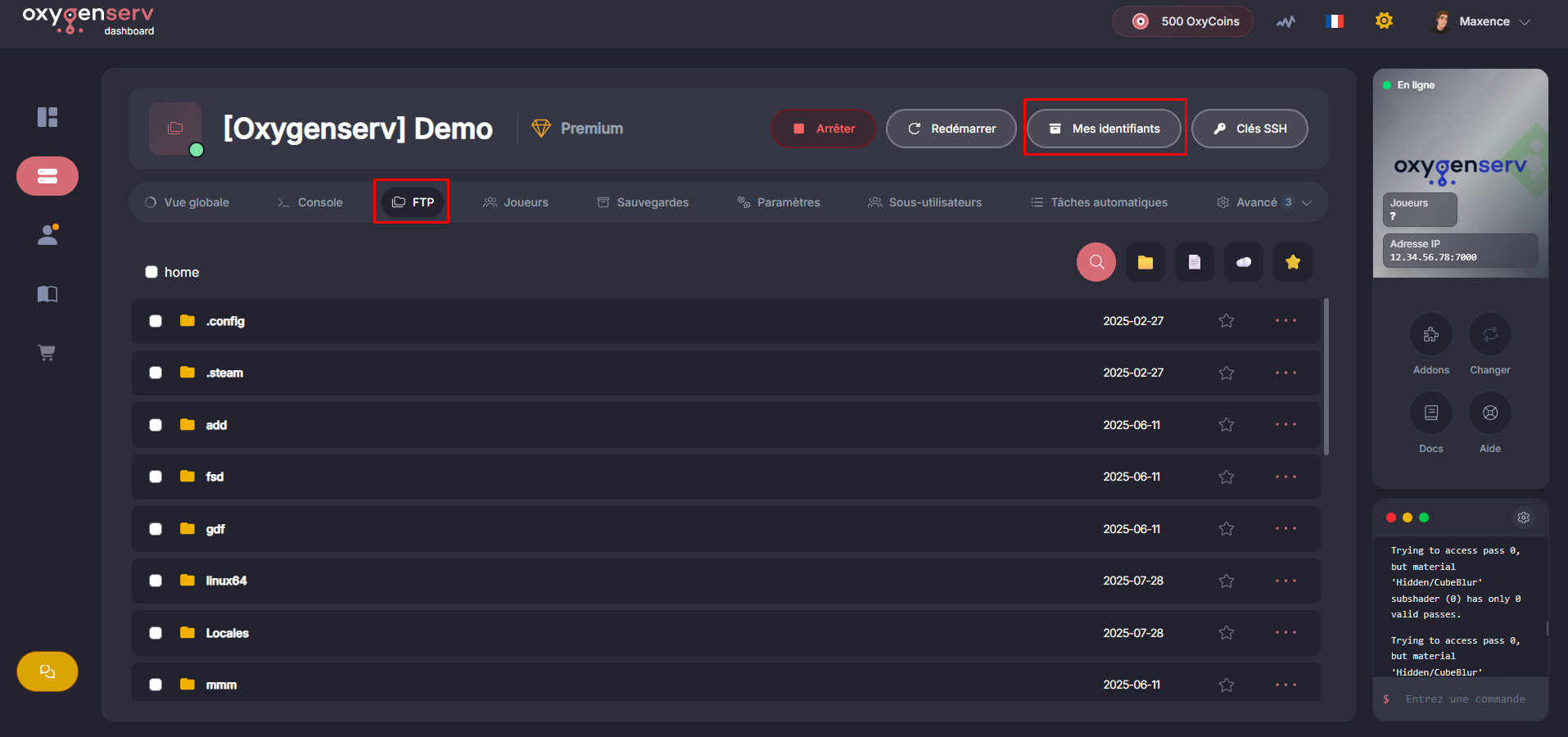
On the dashboard, go to **FTP** then **My credentials**. There you will find:
* **The server address**
* **The access port**
* **Your username**
* **Your password**
{% hint style="warning" %}
Do not share your FTP credentials. Instead create a sub-user with minimum rights: [Add sub-users on your server](/en/dashboard/ajouter-des-sous-utilisateurs-sur-mon-serveur.md).
{% endhint %}
{% endstep %}
{% step %}
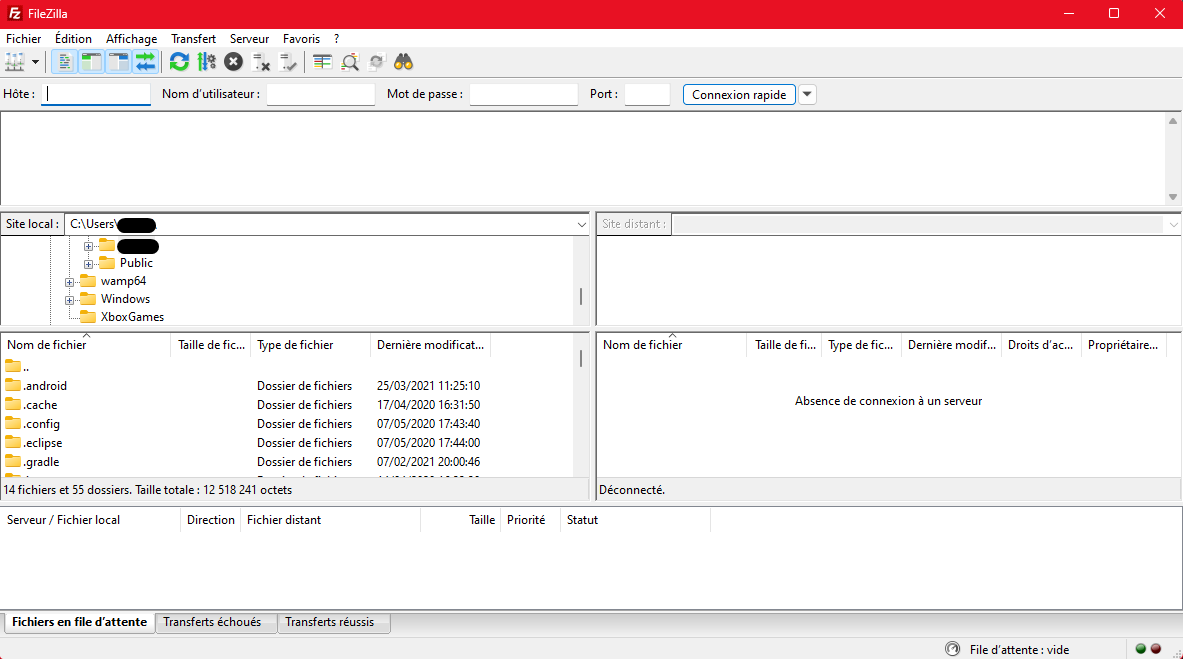
**Open FileZilla**
{% endstep %}
{% step %}
**Connect to the FTP server**
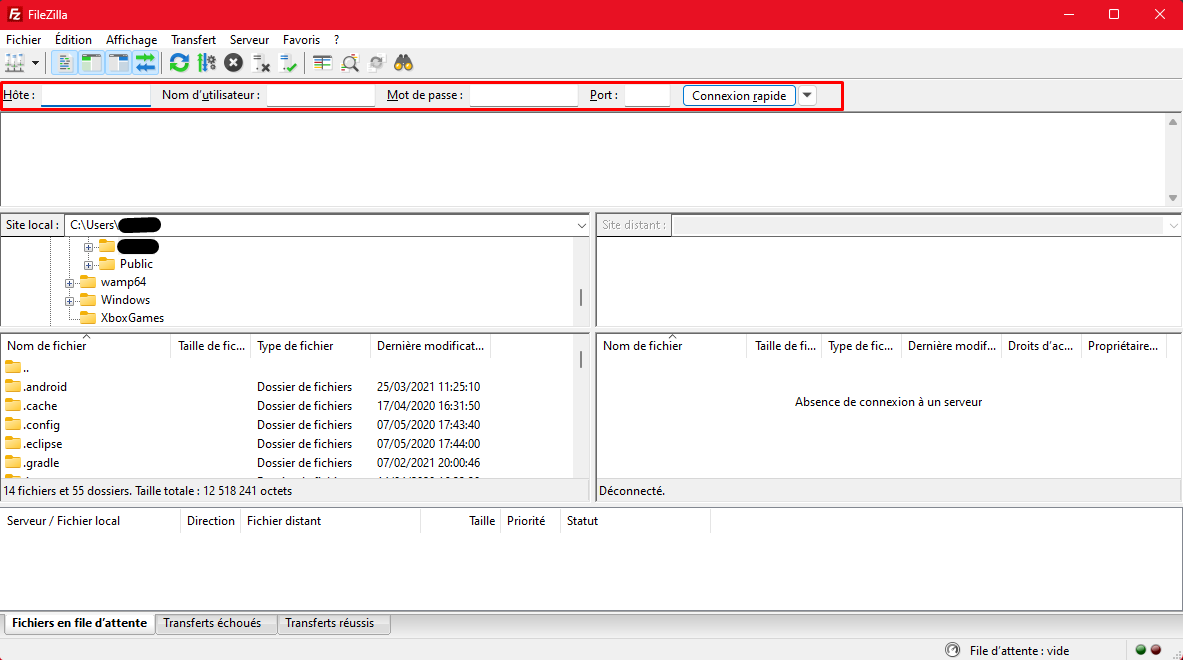
In the “Quickconnect” bar, enter:
* **Host**
* **Username**
* **Password**
* **Port**
Then click **Quickconnect**.
{% endstep %}
{% step %}
**Transfer files (upload / download)**
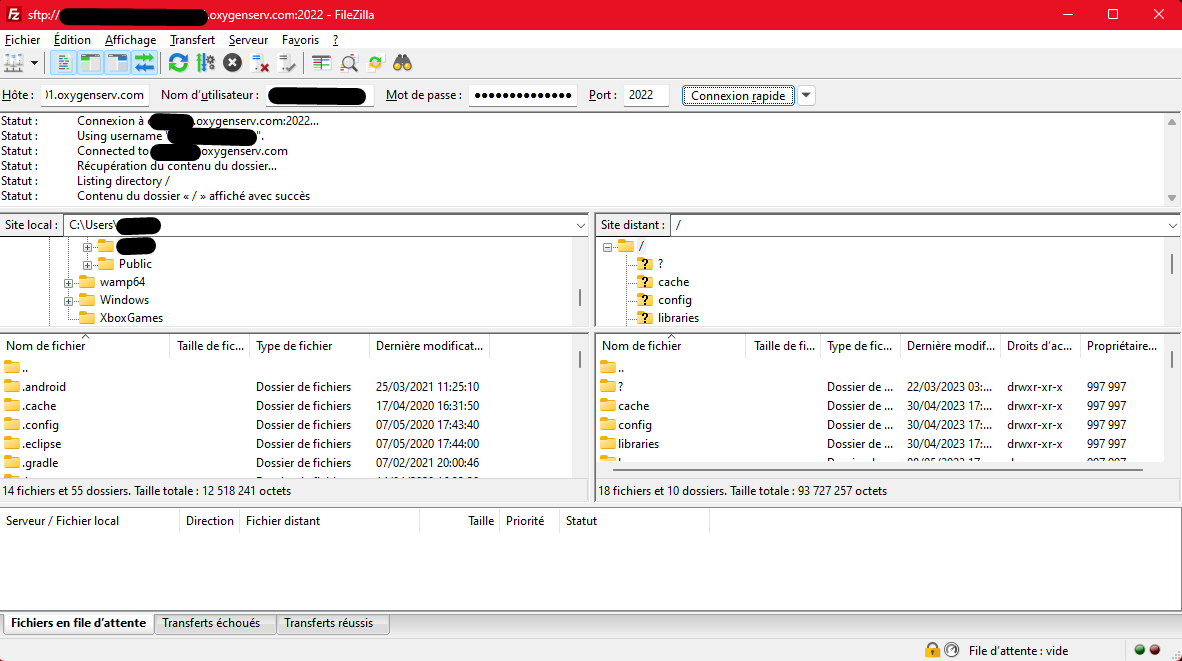
Now that you are connected to your FTP server, you can transfer files between your local computer and the remote server. Here’s how:
* **Navigate** : open folders on the local or remote side.
* **Download** : right-click on the remote side → **Download**.
* **Upload** : right-click on the local side → **Upload**.
* **Monitor transfers** : tab **Transfers** at the bottom.
{% hint style="info" %}
Before modifying an important file, keep a local copy. It helps if you need to revert.
{% endhint %}
{% endstep %}
{% endstepper %}
### Common issues
* **Invalid credentials** : retype the dashboard username and password.
* **Wrong host** : use the host/IP shown in the FTP section.
* **Timeout / connection refused** : try again a few minutes later.
### FAQ
#### What should I send to support if it doesn’t work?
A screenshot of FileZilla with the error and the time of the test.