> For the complete documentation index, see [llms.txt](https://docs.oxygenserv.com/llms.txt). Markdown versions of documentation pages are available by appending `.md` to page URLs; this page is available as [Markdown](https://docs.oxygenserv.com/en/dashboard/changer-le-mot-de-passe-de-mon-compte.md).
# Change my account password
Step-by-step guide to change your Oxygenserv account password from the dashboard.
{% hint style="info" %}
Password change is done from the **Oxygenserv dashboard**. A verification by **email code** is required.
{% endhint %}
### Objective
Change the password of your Oxygenserv account.
### Step-by-step guide
{% stepper %}
{% step %}
**Open your profile**
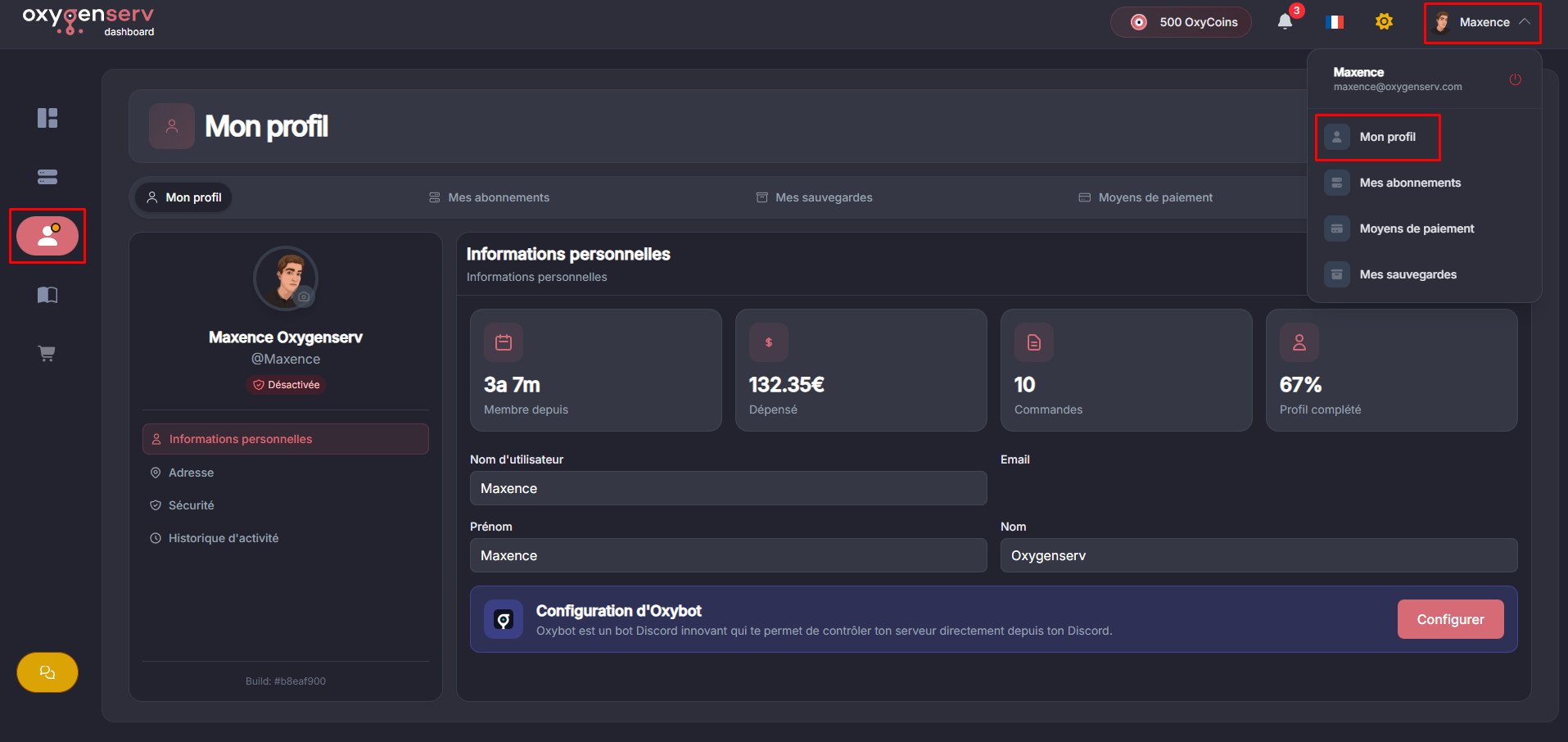
At the top right of the dashboard, click on **your name** then **My profile**.
Or in the left bar, go directly to the same interface.
{% endstep %}
{% step %}
**Change your password**
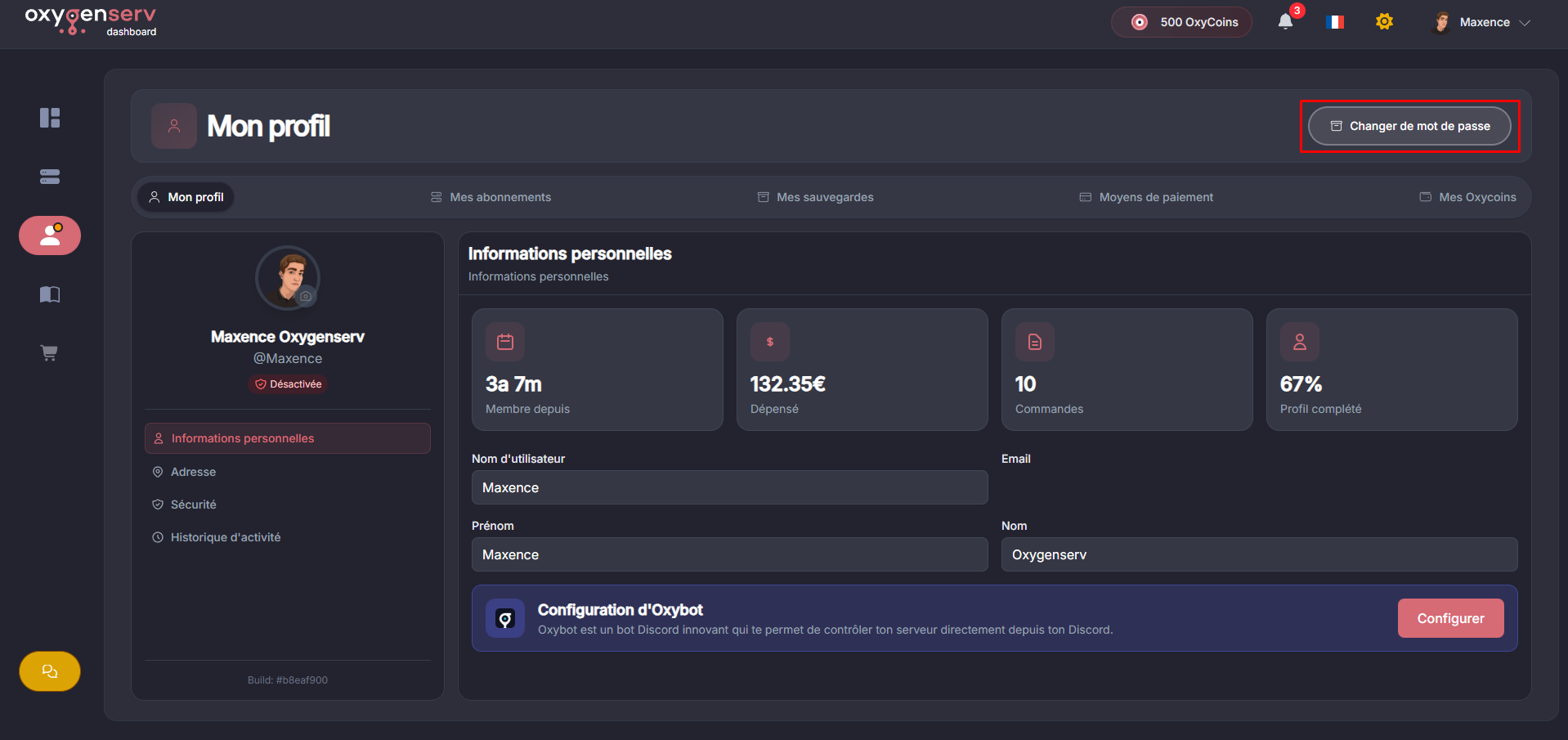
Click on **Change password**.
{% hint style="warning" %}
Use a unique password. Avoid reusing it elsewhere.
{% endhint %}
{% endstep %}
{% step %}
**Confirm with the email code**
You will receive a **4-digit code** by email. Enter this code to confirm your identity.
{% endstep %}
{% step %}
**Set a new password**
Enter your new password. Confirm it a second time. Click **Validate**.
{% hint style="info" %}
A password manager simplifies creation and storage.
{% endhint %}
{% endstep %}
{% endstepper %}
### Common issues
#### I do not receive the code by email
* Check **Spam / Junk**.
* Wait 1 to 2 minutes, then request a new code if necessary.
* Make sure the account email address is correct.
#### The code is rejected or expired
* Enter the last code received.
* Restart the procedure to generate a new code.
### FAQ
#### Do I need to be logged in to change my password?
Yes. This guide covers the change **from the dashboard**.
#### Is the change immediate?
Yes. Once validated, the new password is active.