> For the complete documentation index, see [llms.txt](https://docs.oxygenserv.com/llms.txt). Markdown versions of documentation pages are available by appending `.md` to page URLs; this page is available as [Markdown](https://docs.oxygenserv.com/en/gta-v/installer-un-serveur-fivem-avec-txadmin.md).
# Install txAdmin on my FiveM server
Step-by-step guide to install txAdmin on your FiveM server (CFX key, database, server.cfg).
{% hint style="info" %}
TXAdmin is the official FiveM interface to install and manage your server (recipe, DB, permissions, resources).
{% endhint %}
### Goal
* Install FiveM from the Oxygenserv dashboard.
* Generate a **CFX key** (Keymaster).
* Finalize the installation in TXAdmin (recipe + DB + `server.cfg`).
{% hint style="info" %}
Need a DB?
* [Create and access its database](/en/dashboard/creer-et-acceder-a-sa-base-de-donnees.md)
{% endhint %}
{% hint style="warning" %}
Before a major change (recipe, resources, DB), make a file backup:\
[Create a backup and restore it](/en/dashboard/creer-une-sauvegarde-et-la-restaurer-sur-son-serveur.md).
{% endhint %}
### Step-by-step guide
{% stepper %}
{% step %}
**Install FiveM from the dashboard**
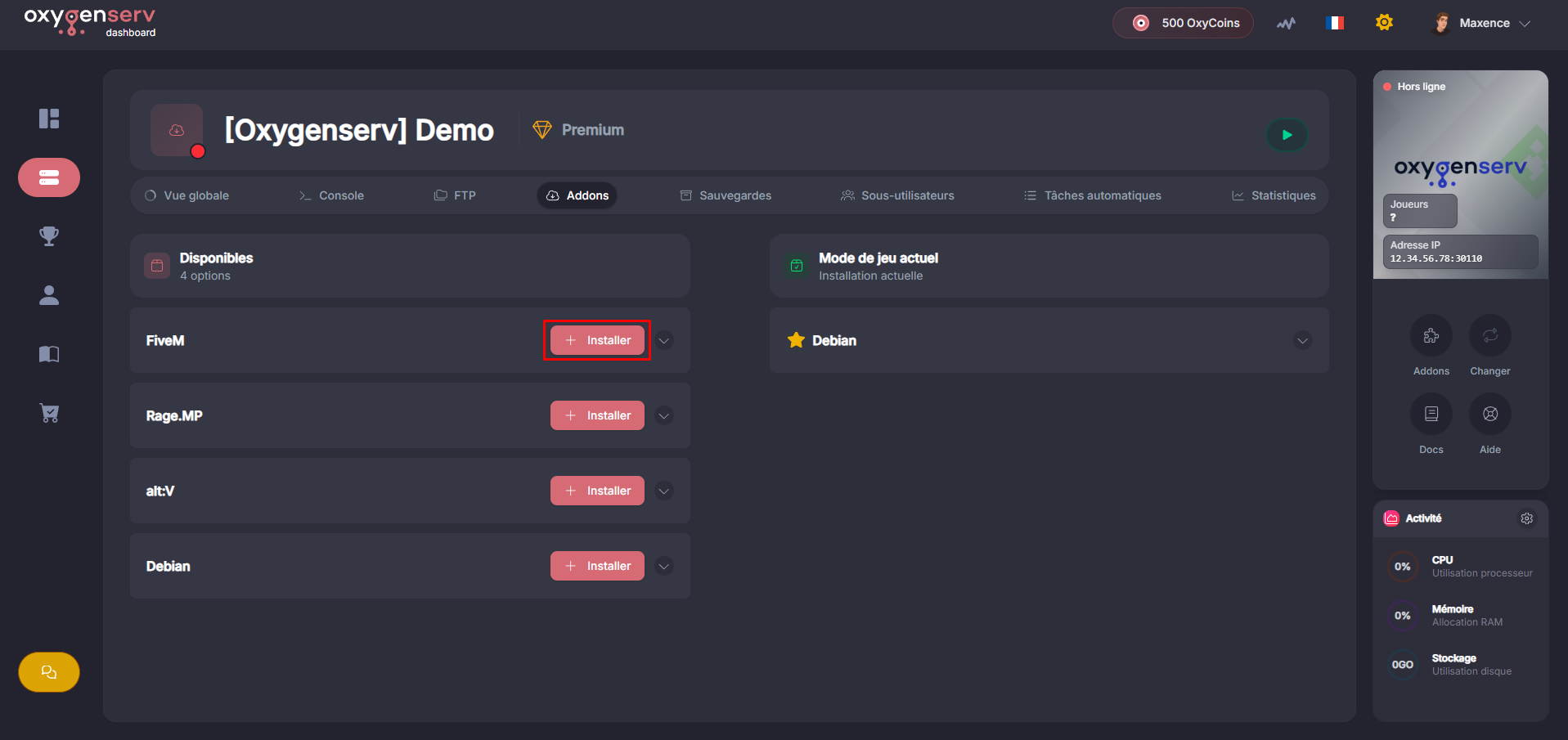
On the dashboard, open **Addons**, then click **Install** next to FiveM.
{% endstep %}
{% step %}
**Generate your CFX key (Portal)**
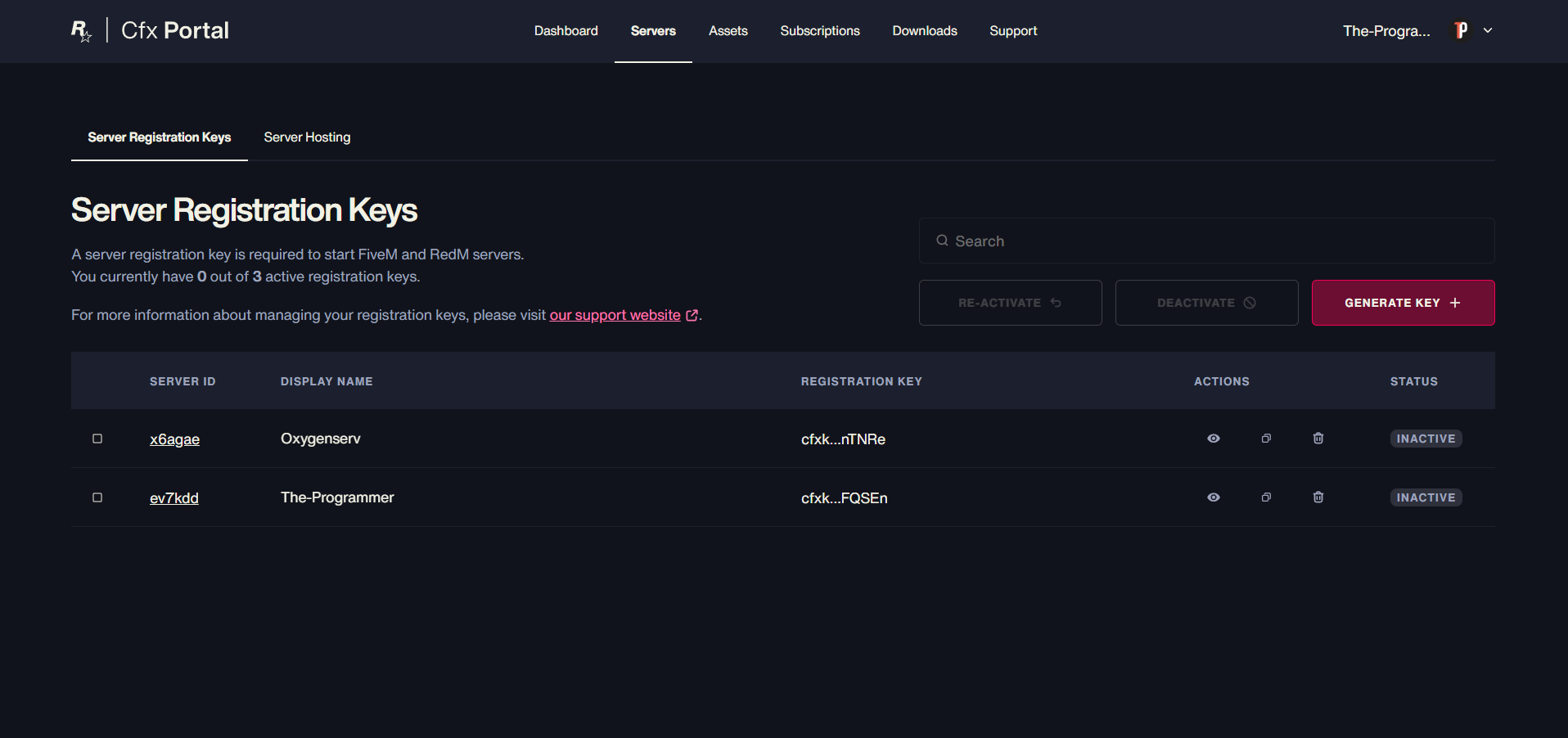
Open Portal: then log in.
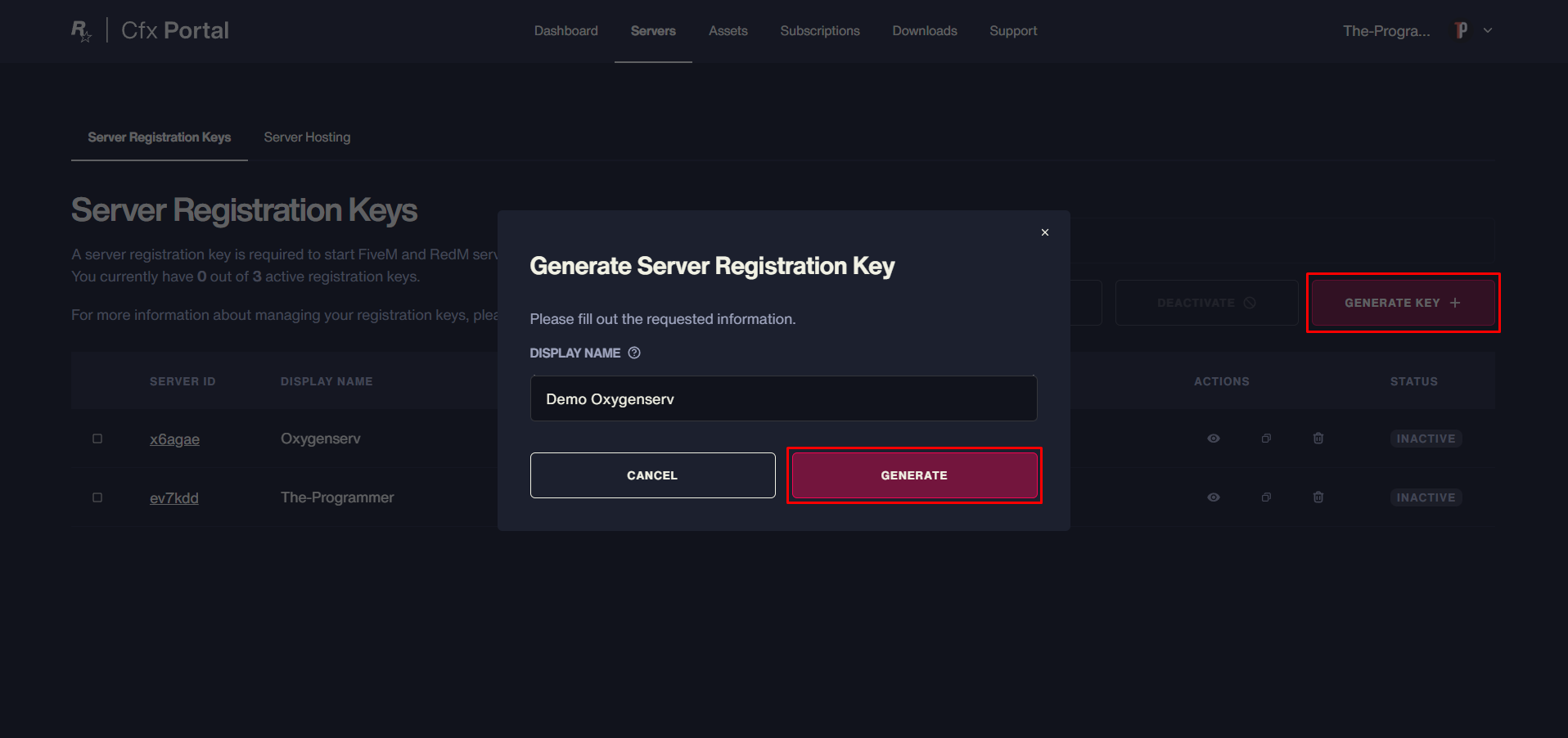
Click "**Generate key**", give it a name then click "**Generate**".
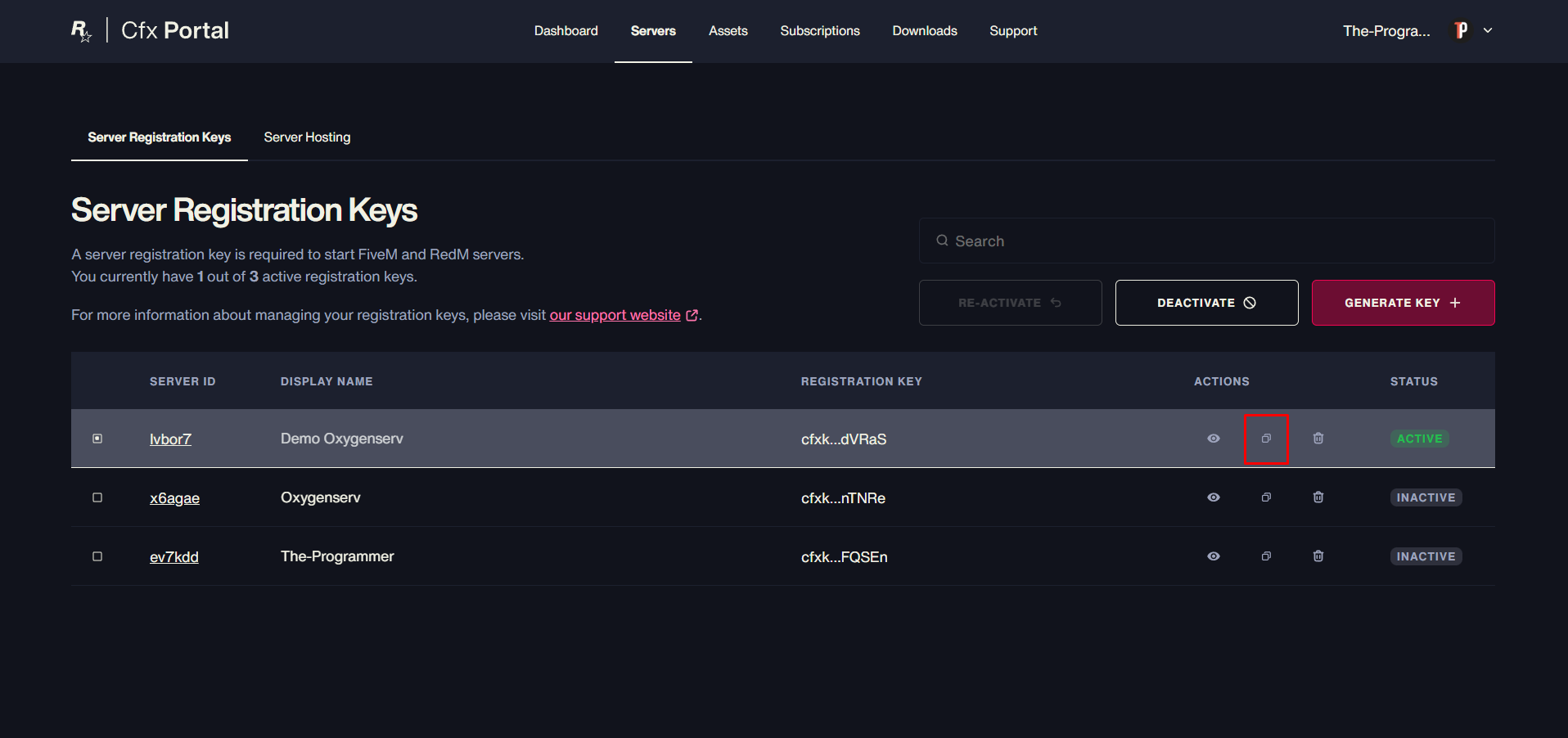
Copy the key that was created by clicking the button below.
{% endstep %}
{% step %}
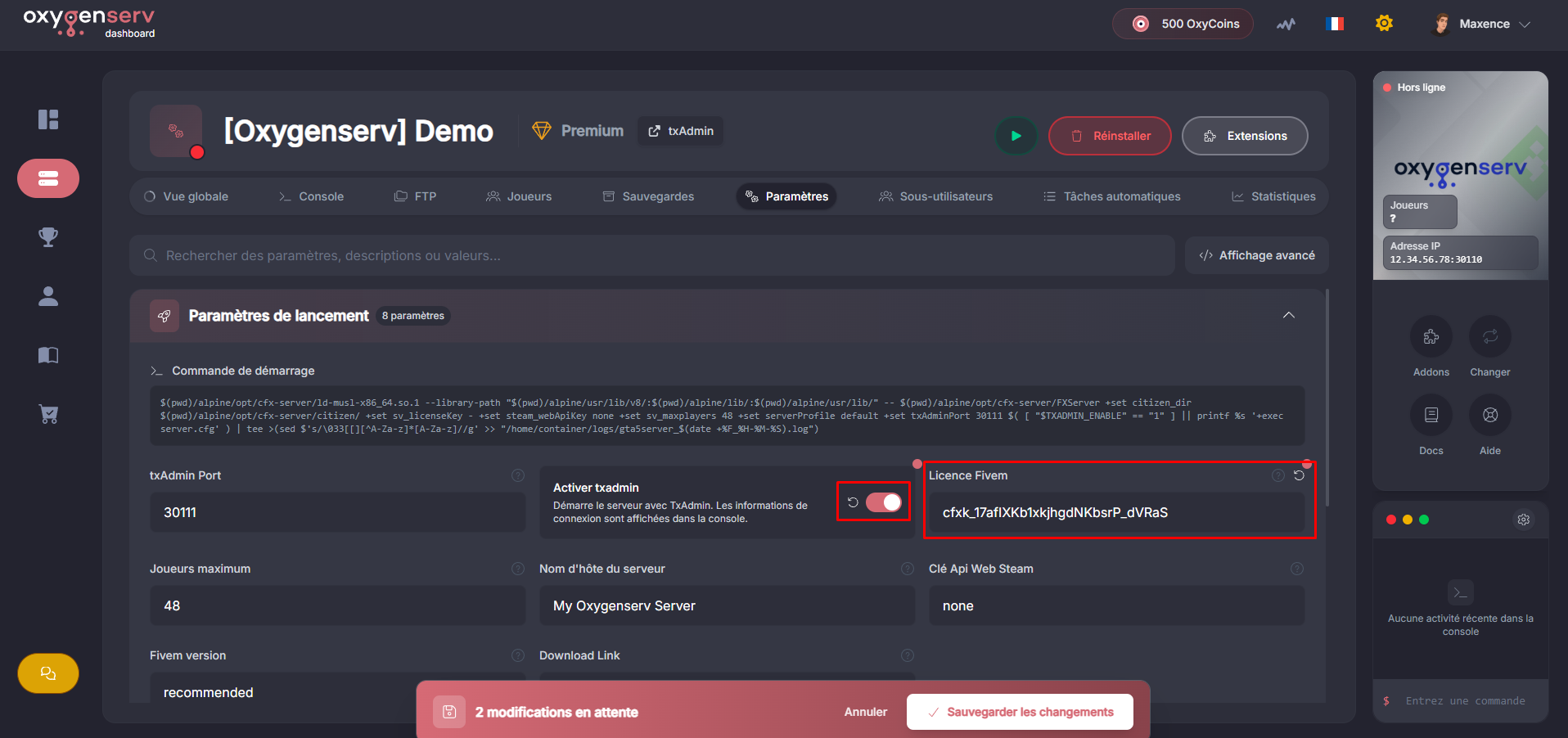
**Add your key in the server settings**
In the **Settings**tab, paste the key into "**FiveM License**" and enable **txAdmin**.
{% endstep %}
{% step %}
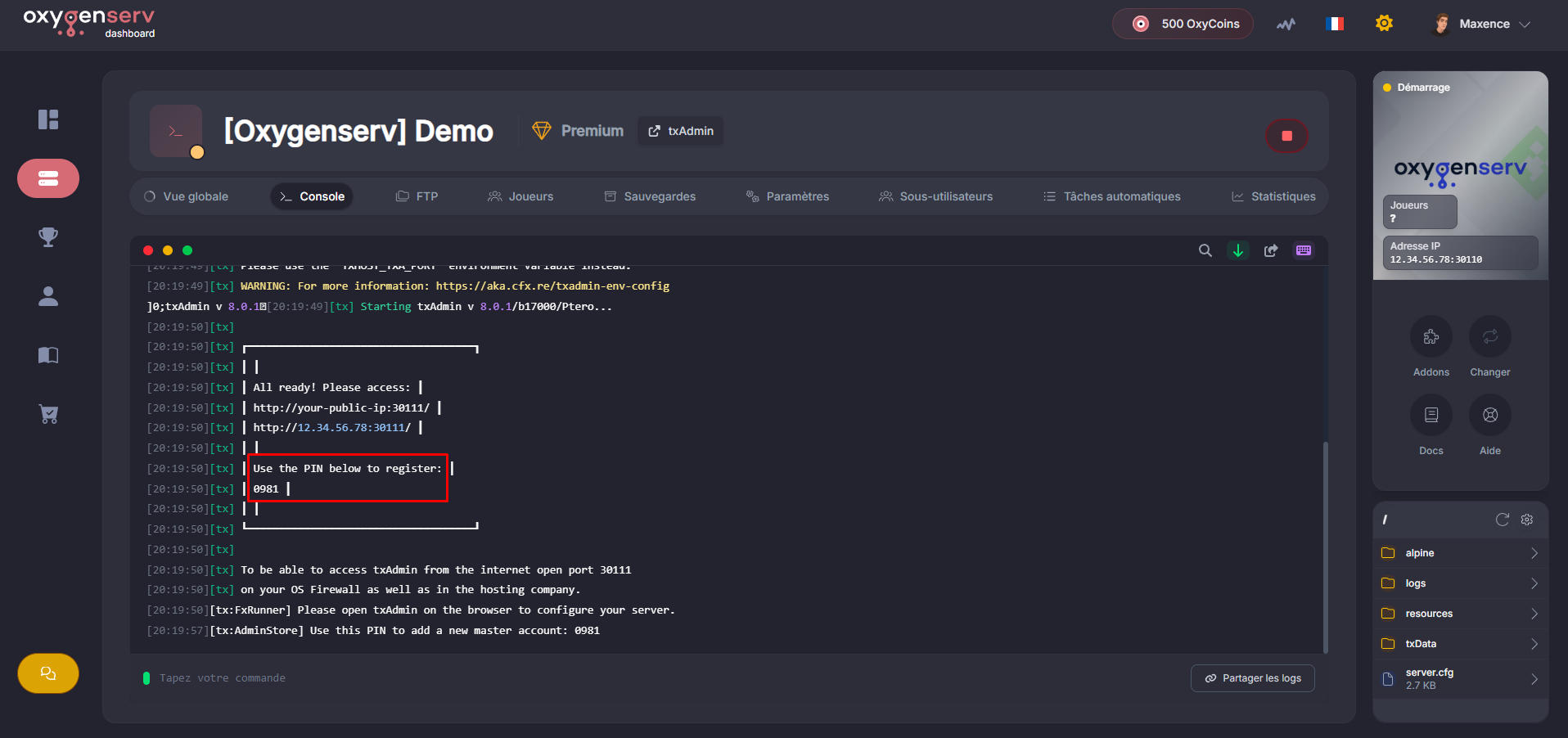
**Retrieve the txAdmin PIN and open txAdmin**
After starting your server, go to the **Console** to find the PIN code.
{% endstep %}
{% step %}
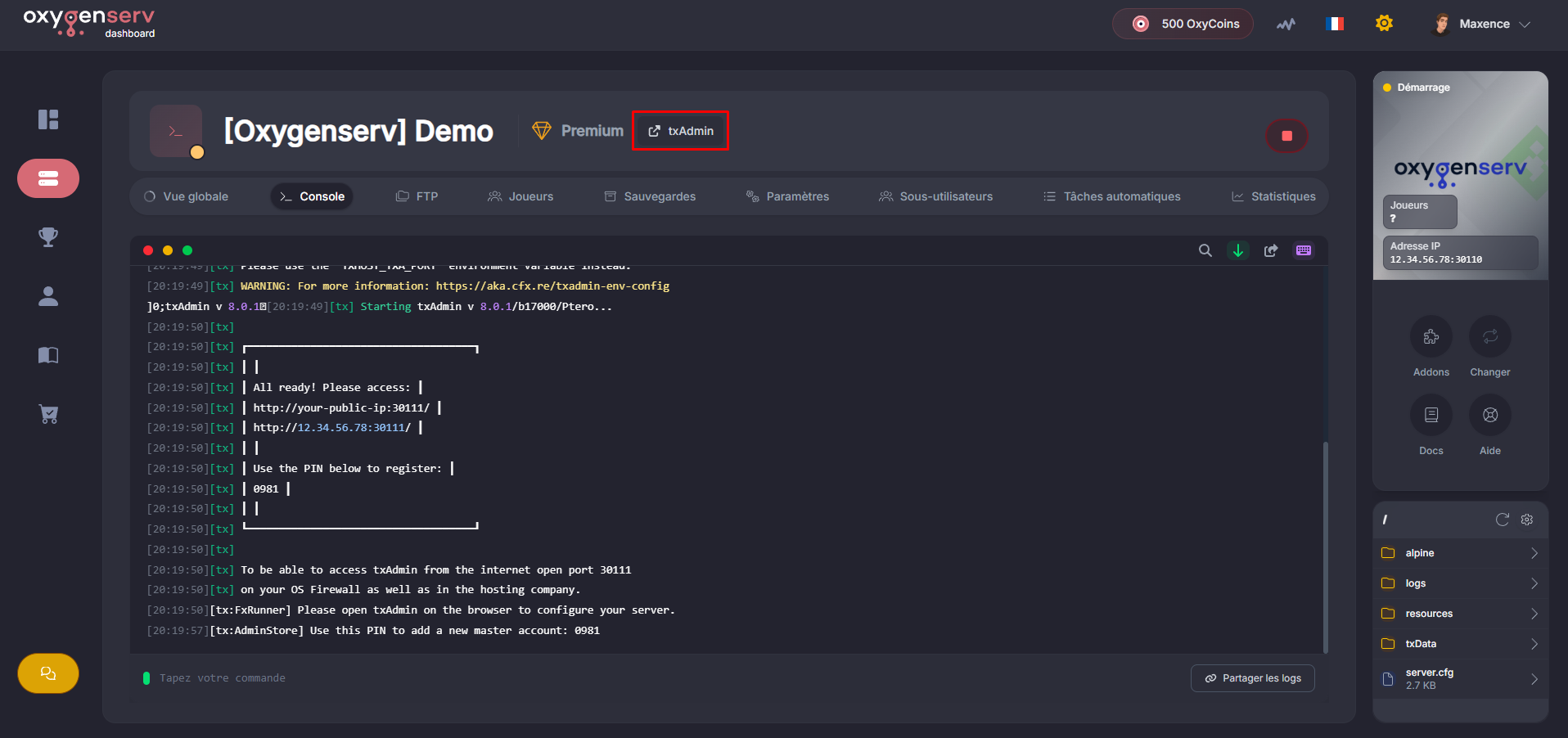
**Open and log in to txAdmin**
Click **txAdmin** next to your server's name.
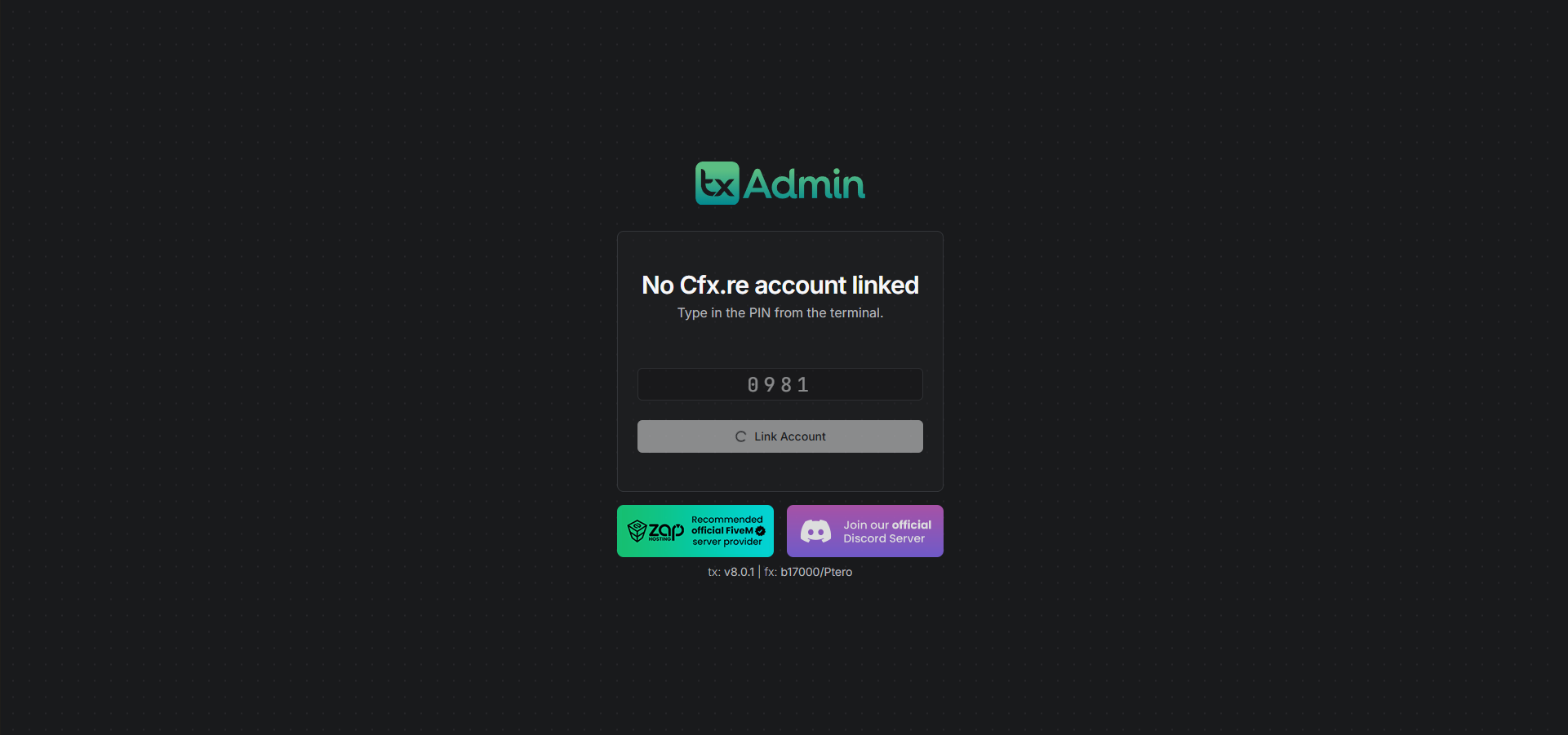
In txAdmin, enter the **PIN** displayed in the console.
{% endstep %}
{% step %}
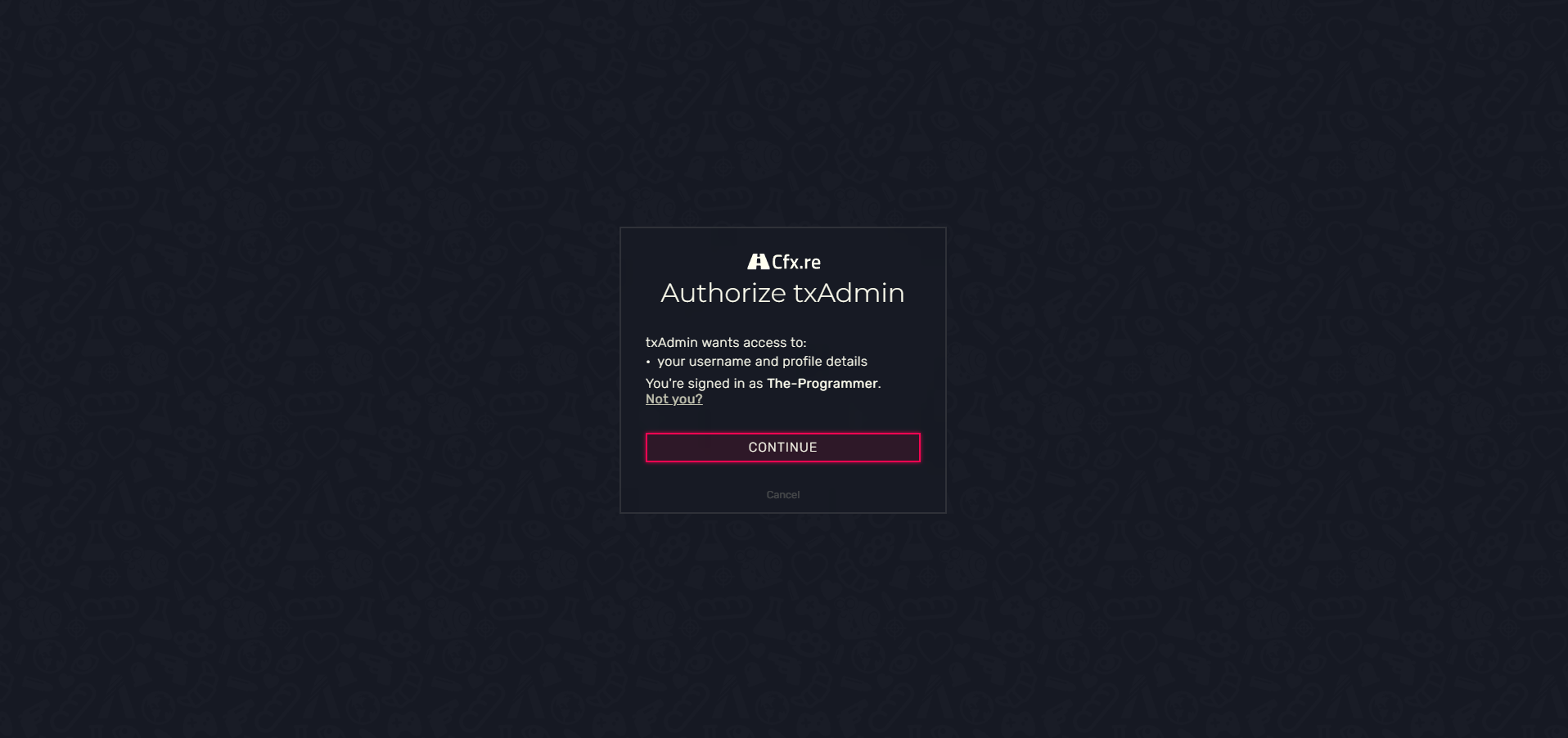
**Link your FiveM account to txAdmin**
You must now authorize TXAdmin with FiveM.
{% endstep %}
{% step %}
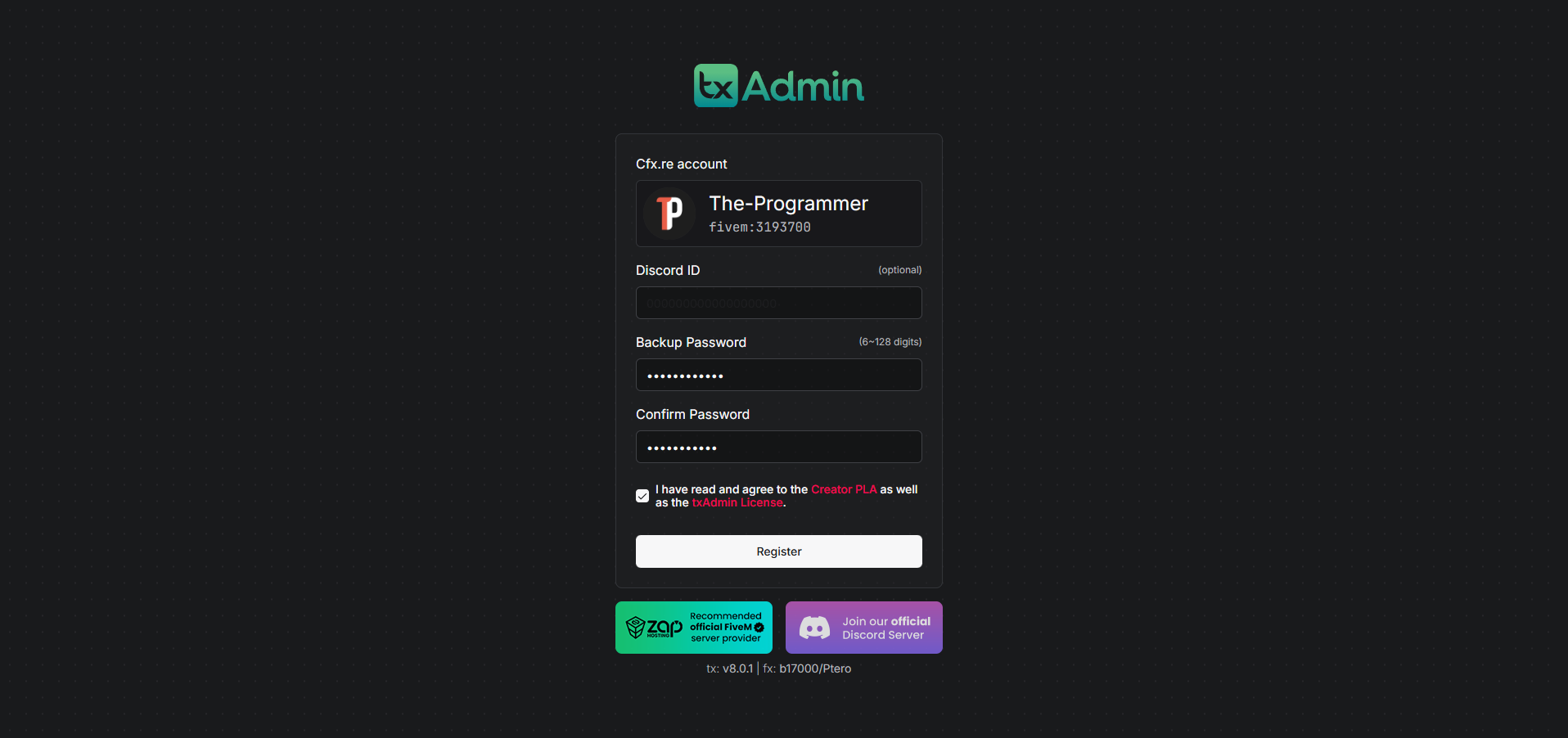
**Create the TXAdmin admin password**
Choose a long password, without accents. Write it down.
{% endstep %}
{% step %}
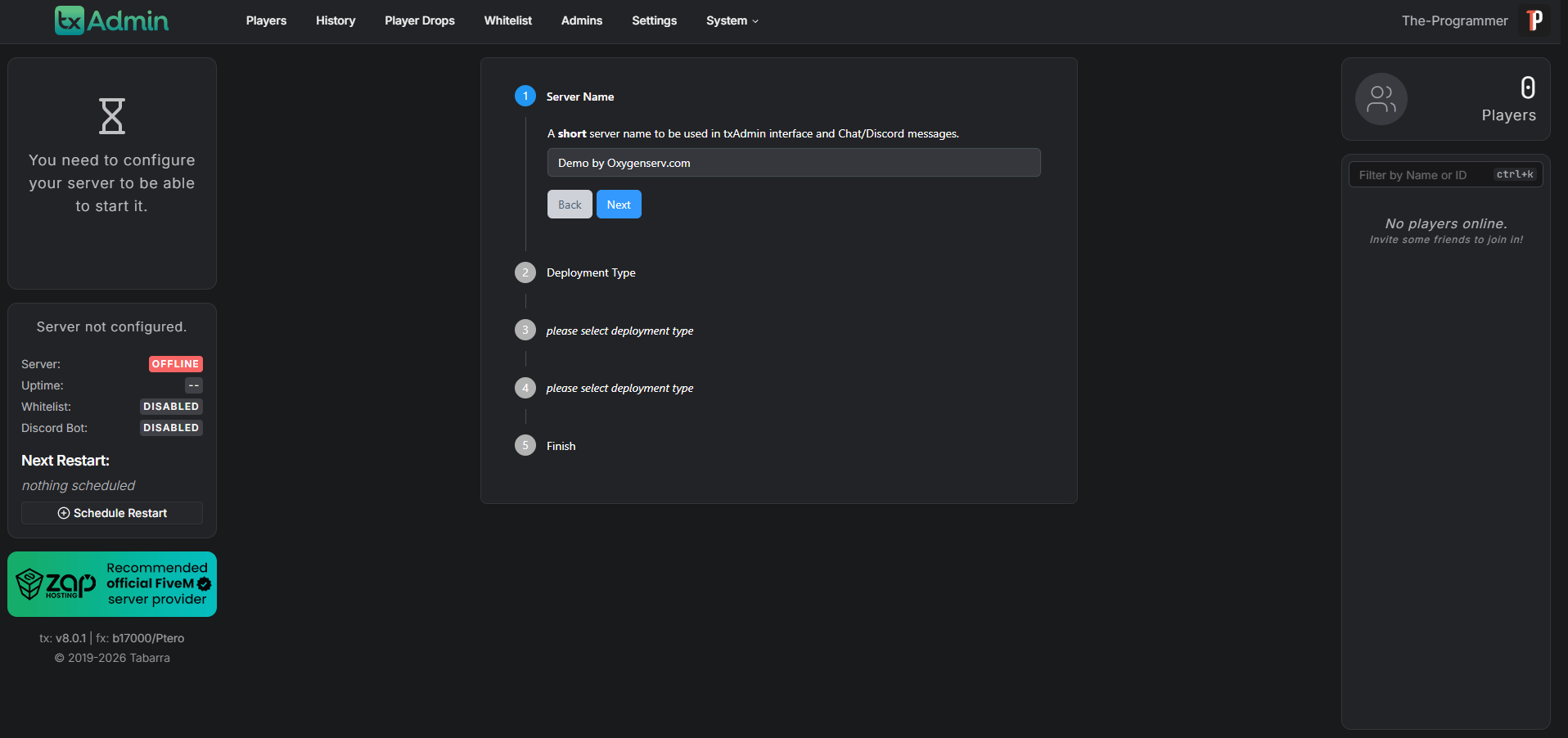
**Choose the server name and the recipe**
Choose a **name** for your server.
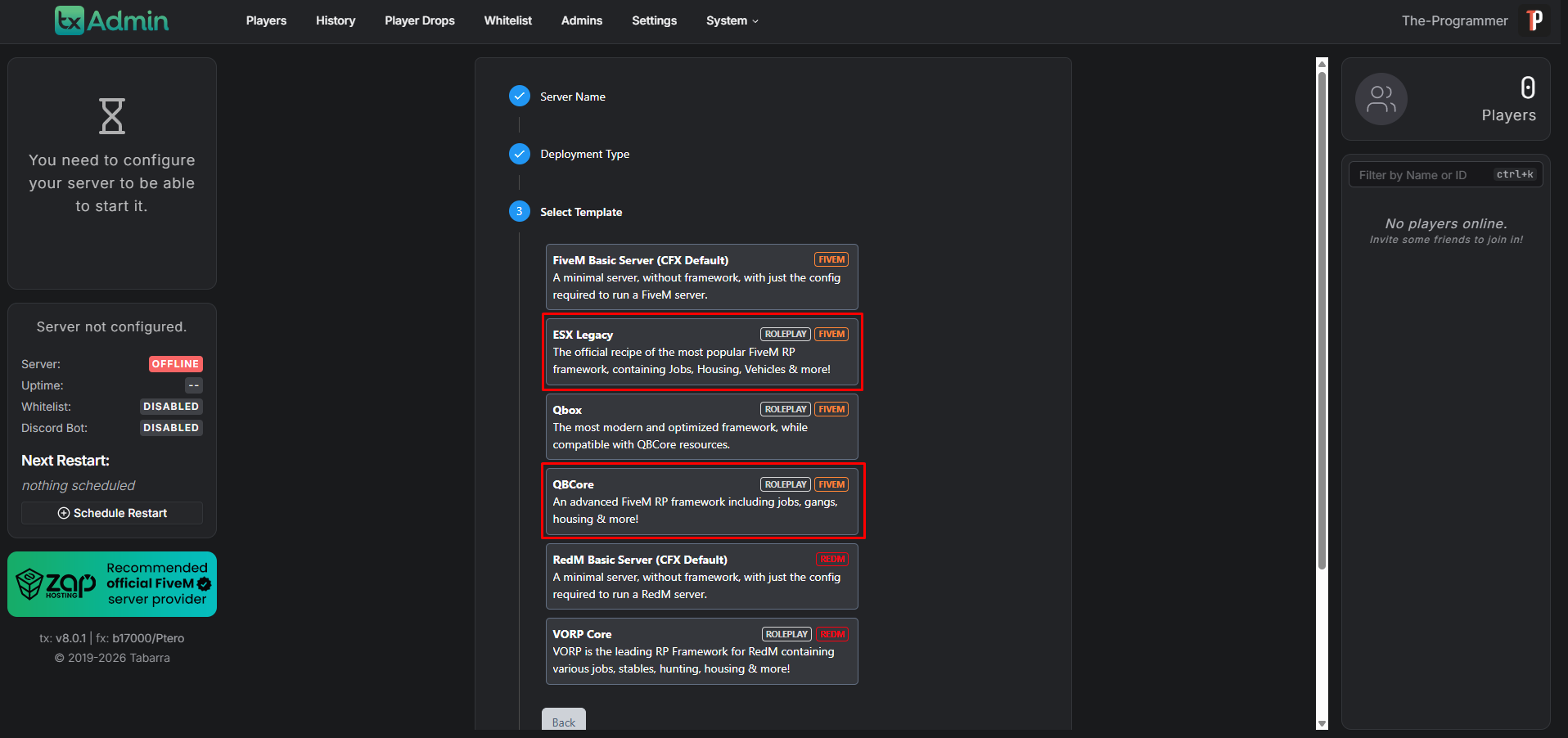
Then select a **recipe** (Popular Recipes → ESX Legacy or QBCore, for example)
{% endstep %}
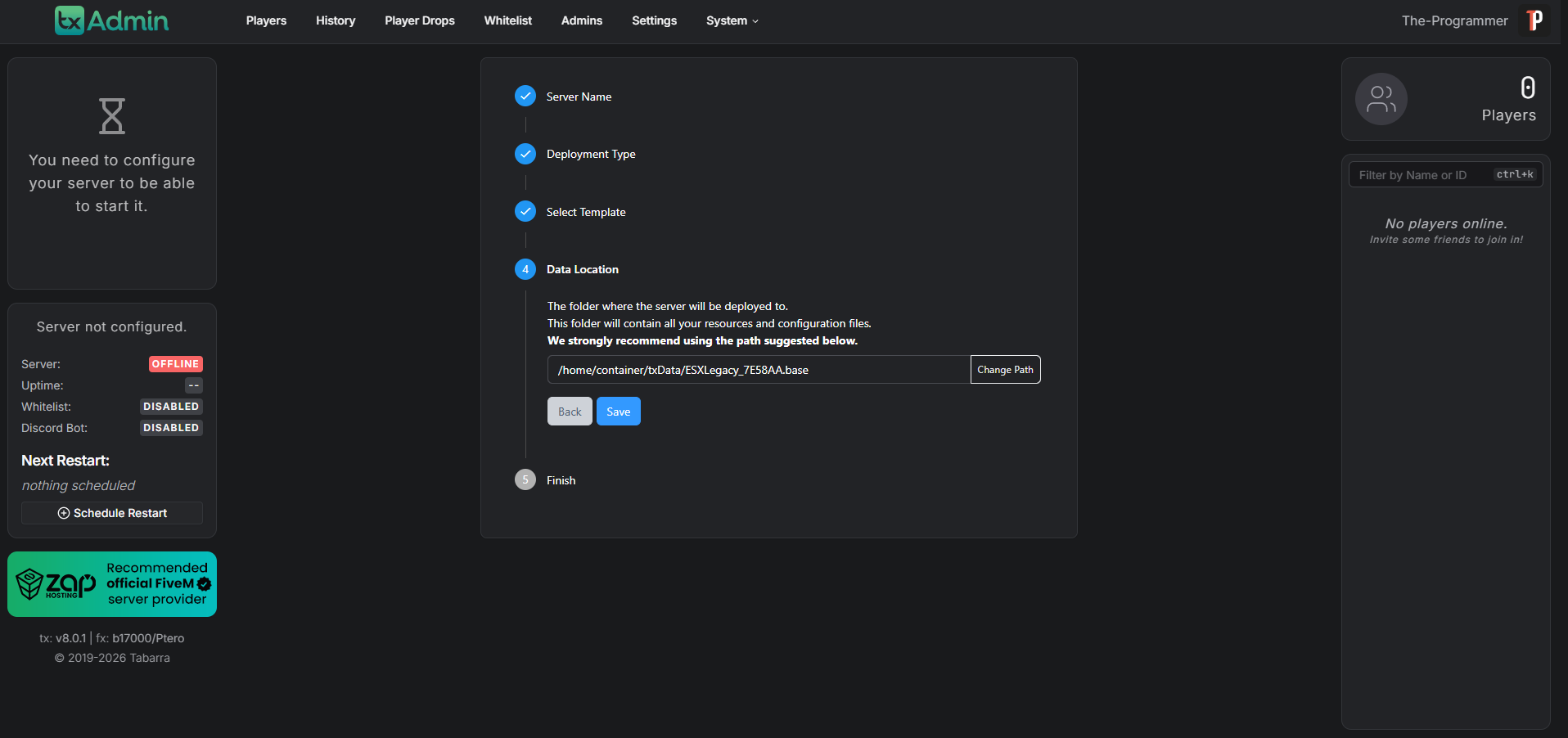
{% step %}
**Check the Data Location**
Do not change the suggested folder.
{% endstep %}
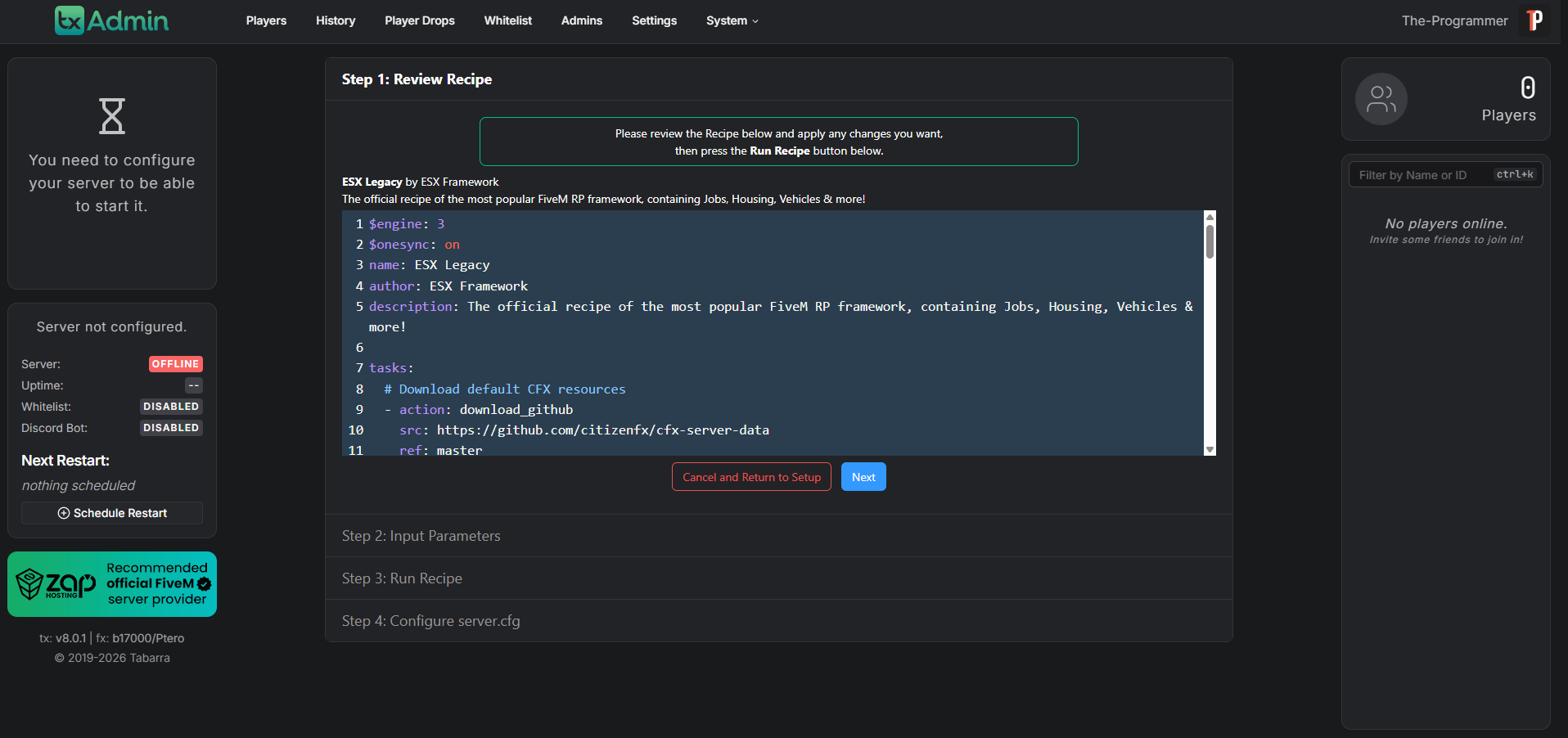
{% step %}
**Review Recipe (leave default)**
Now you should arrive on a new page; for the first step, please do not touch anything.
{% endstep %}
{% step %}
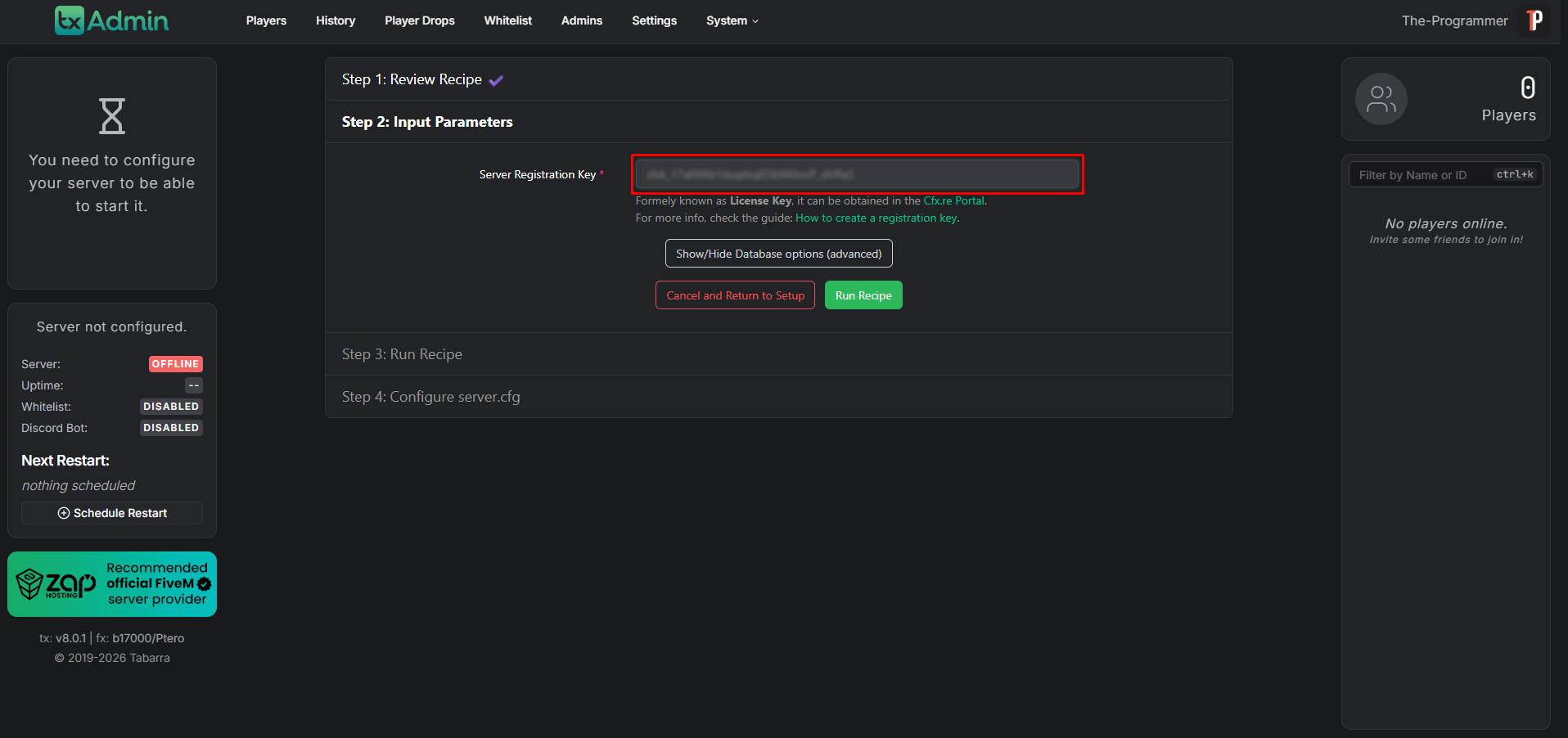
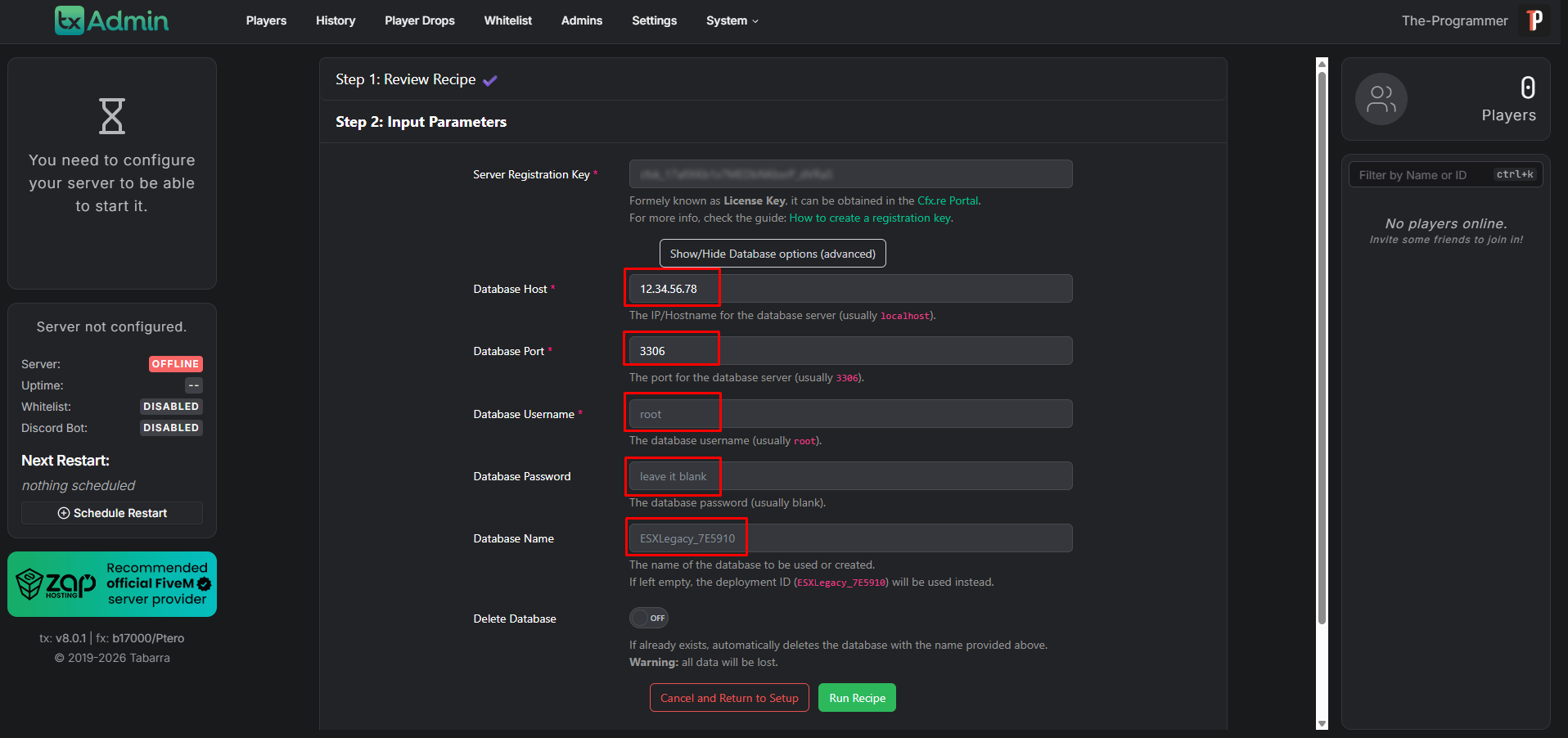
**Enter your CFX key and database information**
Enter your CFX key obtained in step 2.
Click "Show/Hide Database options (advanced)", then enter your database credentials ([Create and access its database](/en/dashboard/creer-et-acceder-a-sa-base-de-donnees.md)).
Click "Run Recipe".
{% endstep %}
{% step %}
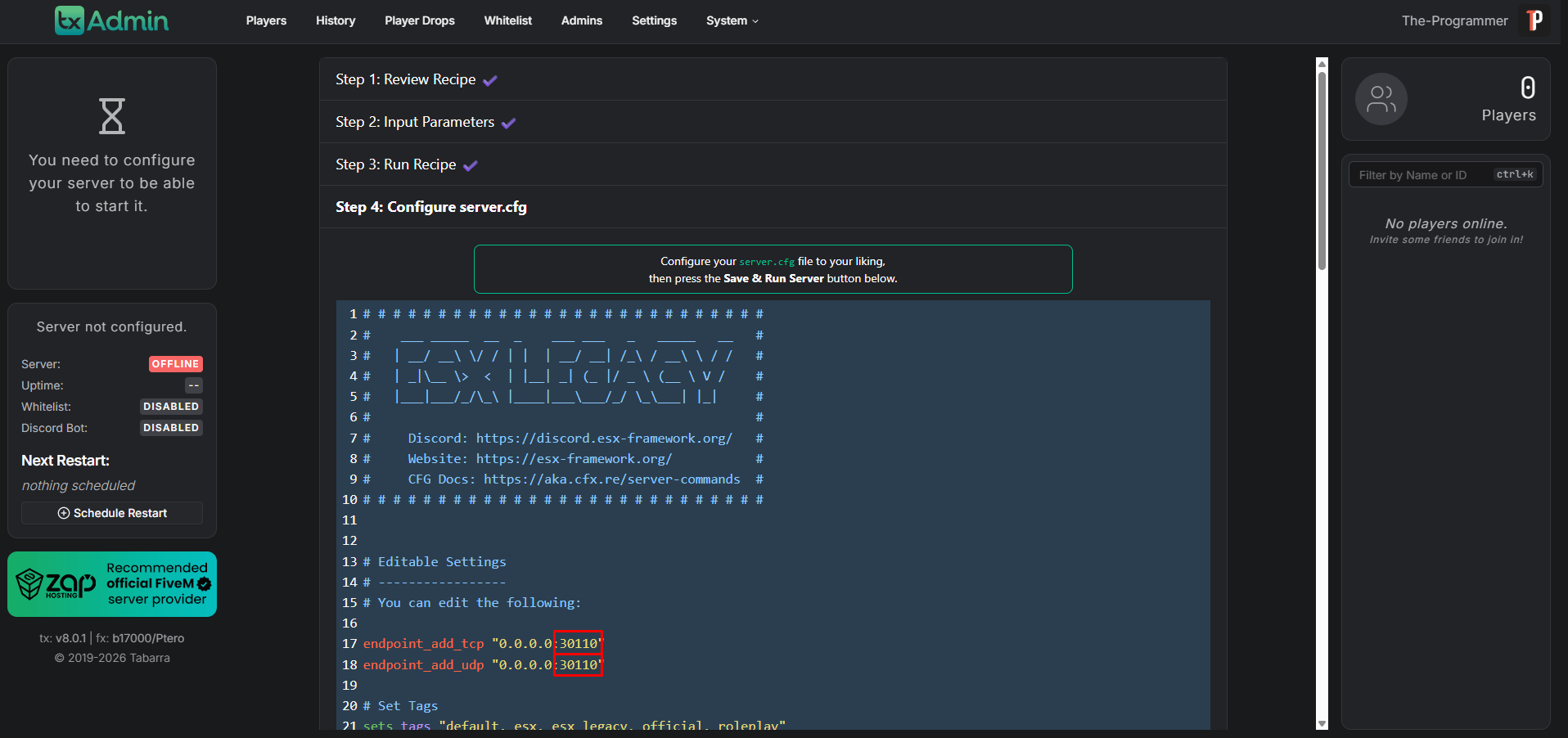
**Configure the `server.cfg`**
You must now configure and modify the server.cfg file to indicate the port that was assigned to your server.
{% endstep %}
{% step %}
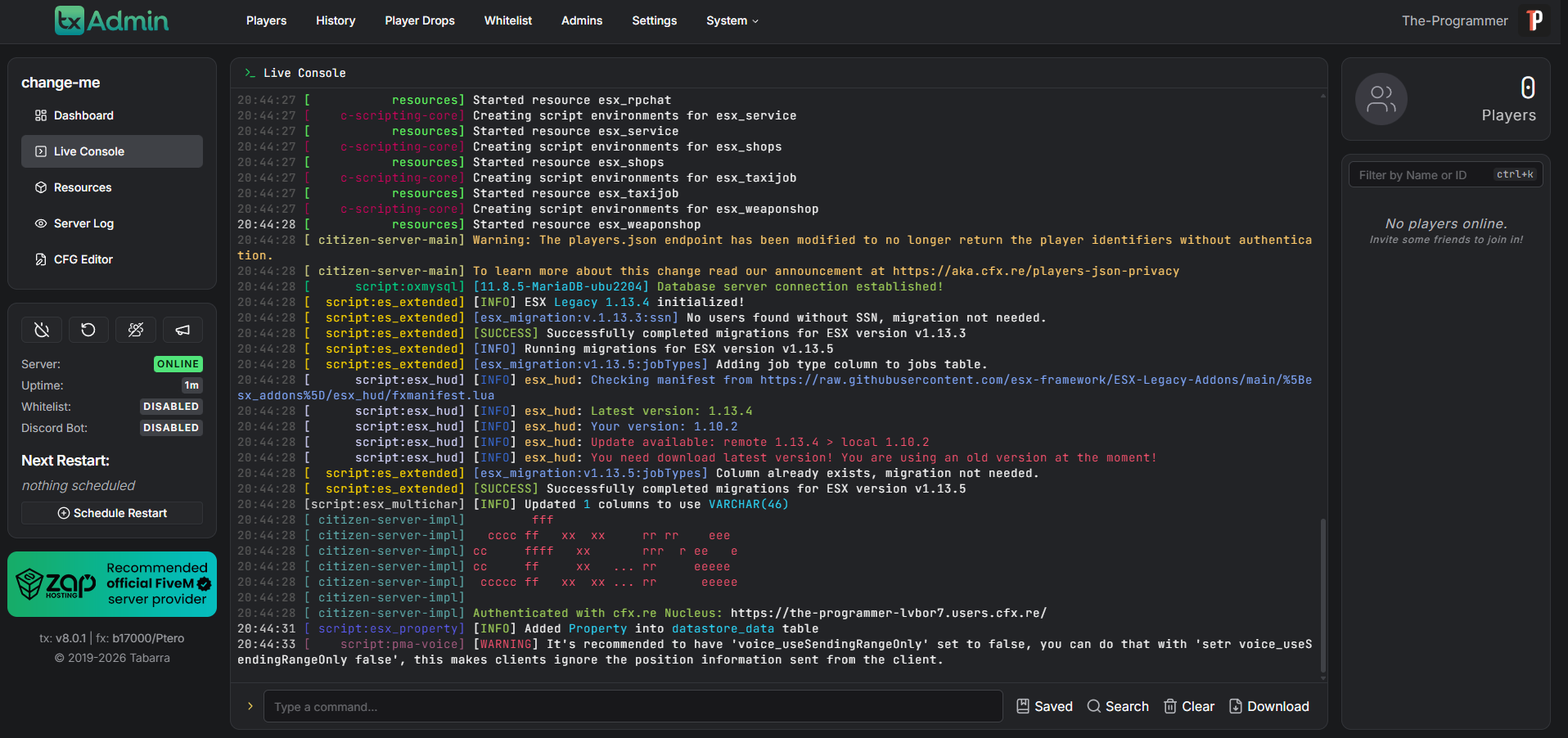
**Start the server**
Now you just have to scroll to the bottom of the page and click "Save & Run Server". And that's it! Your server is ready!
{% endstep %}
{% endstepper %}
### Common issues
#### TXAdmin does not show the PIN
* Make sure the server is started.
* Check the console. The PIN is displayed there.
#### DB issue (connection refused)
* Check host/user/password/port.
* Test a phpMyAdmin access: [Create and access its database](/en/dashboard/creer-et-acceder-a-sa-base-de-donnees.md).