> For the complete documentation index, see [llms.txt](https://docs.oxygenserv.com/llms.txt). Markdown versions of documentation pages are available by appending `.md` to page URLs; this page is available as [Markdown](https://docs.oxygenserv.com/en/dashboard/planifier-une-nouvelle-tache.md).
# Schedule a new task
Step-by-step guide to schedule automatic tasks on your server (restart, backups, commands).
{% hint style="info" %}
The **automatic tasks** are used to run actions at fixed times.\
Examples: daily restart, server command, scheduled maintenance.
{% endhint %}
### Objective
Create a **schedule** (days + times), then add **tasks** (actions).
### Step-by-step guide
{% stepper %}
{% step %}
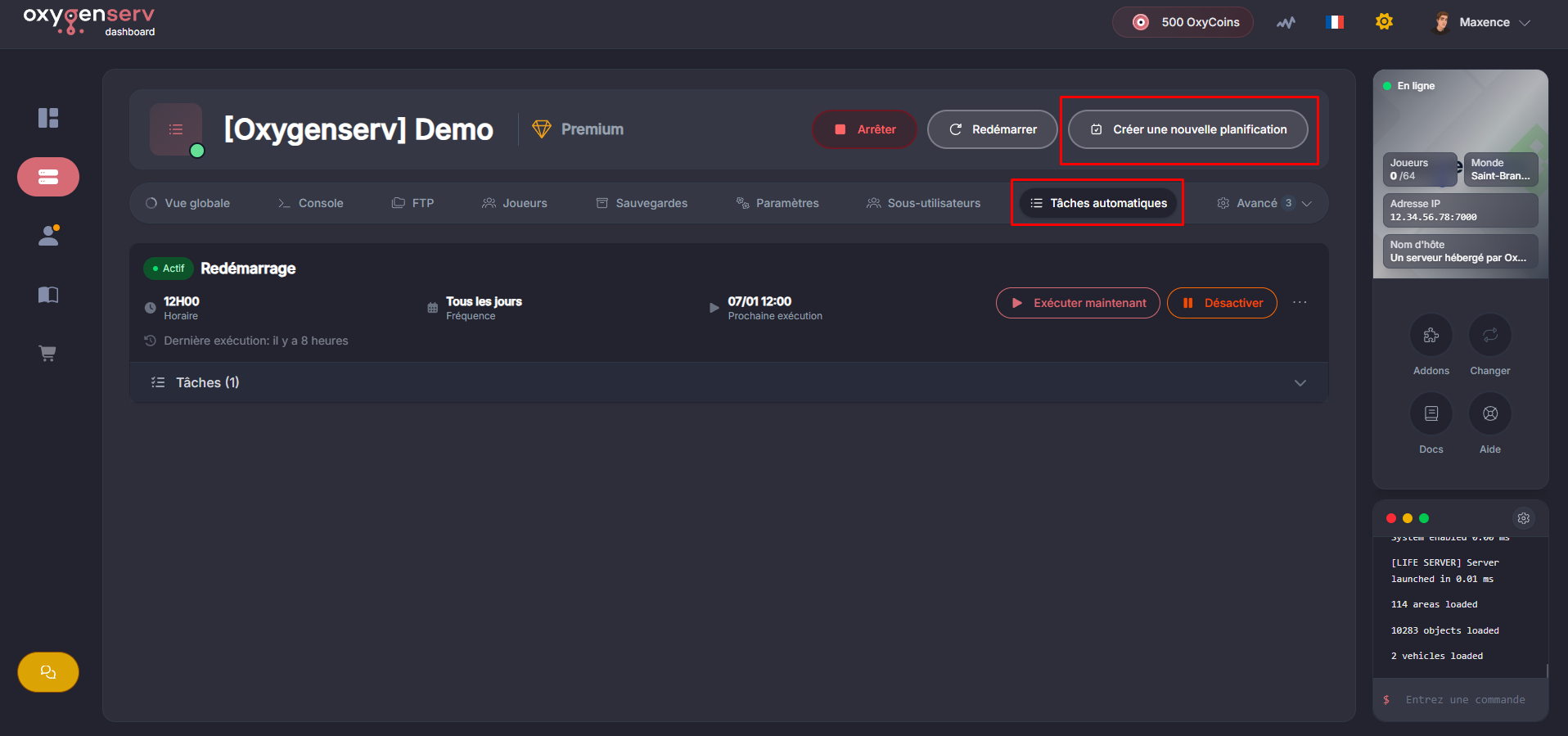
**Create a schedule**
On the dashboard, click **Create a new schedule**.
Fill in:
* **Name** (e.g. `Daily restart`)
* **Execution days** (e.g. every day, or Mon/Wed/Fri)
* **Execution time(s)**
* **Activation** (the schedule must be activated to run)
Then click **Create the schedule**.
{% endstep %}
{% step %}
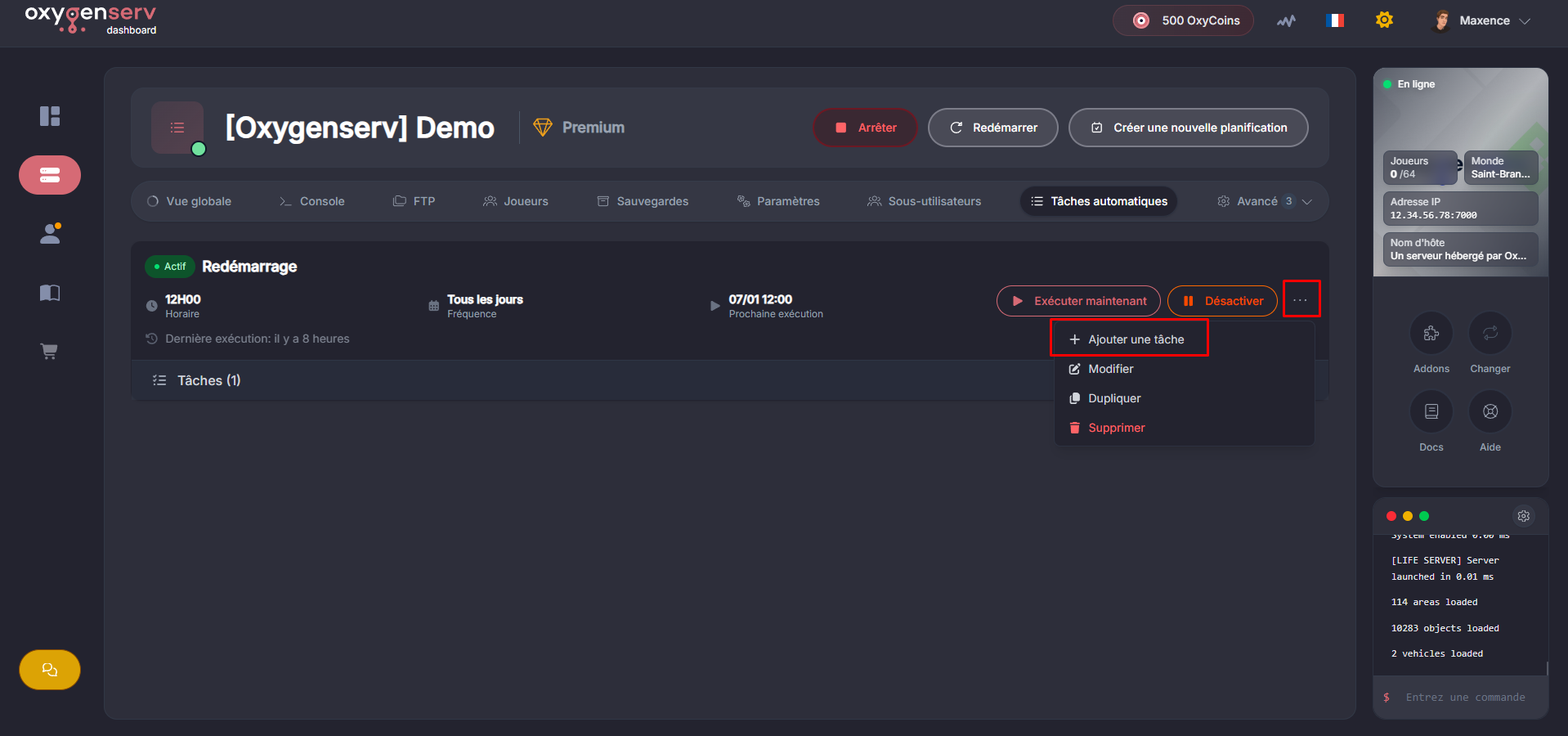
**Add a task to the schedule**
On the schedule, click the menu **⋯** then **Add a task**.
{% endstep %}
{% step %}
**Configure the task (action)**
Fill in:
* **Action** (e.g. restart, run a command)
* **Delay between tasks** (useful if you chain multiple actions)
* **Command** (if the action requires it)
Finish with **Create**.
{% hint style="info" %}
Good habit: start with a “test” schedule in 5 minutes.\
You can confirm the trigger before switching to daily.
{% endhint %}
{% endstep %}
{% endstepper %}
### Common issues
* **Nothing happens at the scheduled time** : check that the schedule is **enabled**.
* **Wrong time** : check the timezone used by your server and retest.
* **Task created but no effect** : confirm that the**action** chosen matches the need (restart vs command).
### FAQ
#### Can I put multiple tasks in a single schedule?
Yes. Add multiple tasks and use the **delay** to chain them properly.
#### What is the “delay between tasks” for?
To prevent two actions from starting at the same time.\
Example: backup → wait 60s → restart.
#### How do I modify or delete a schedule?
Open **Automatic tasks**, then use the menu **⋯** on the schedule.