> For the complete documentation index, see [llms.txt](https://docs.oxygenserv.com/llms.txt). Markdown versions of documentation pages are available by appending `.md` to page URLs; this page is available as [Markdown](https://docs.oxygenserv.com/en/palworld/transferer-une-sauvegarde-windows-vers-linux.md).
# Transfer a Windows save to Linux
Step-by-step guide to transfer a Palworld save from Windows to Linux (SaveGames, player migration, troubleshooting).
{% hint style="info" %}
This guide is for migrating a backup **Palworld** from a server **Windows** to a server **Linux**.
The map transfers directly. The **players** require a conversion.
{% endhint %}
### Goal
* Copy the backup (world + players) to the Linux server.
* Generate a new player on the Linux server side.
* Migrate the players via **palworld-host-save-fix**.
### Step-by-step guide
{% stepper %}
{% step %}
**Upload the Windows backup to the Linux server**
In the Linux server FTP, go to:
`Pal/Saved/SaveGames/0/XXXXXXXXXXXXXXXXXXXXXXXXXXXXXXXX/`
The folder `XXXXXXXXXXXXXXXX...` is **32 characters**.
Copy your Windows backup files into this folder.
{% endstep %}
{% step %}
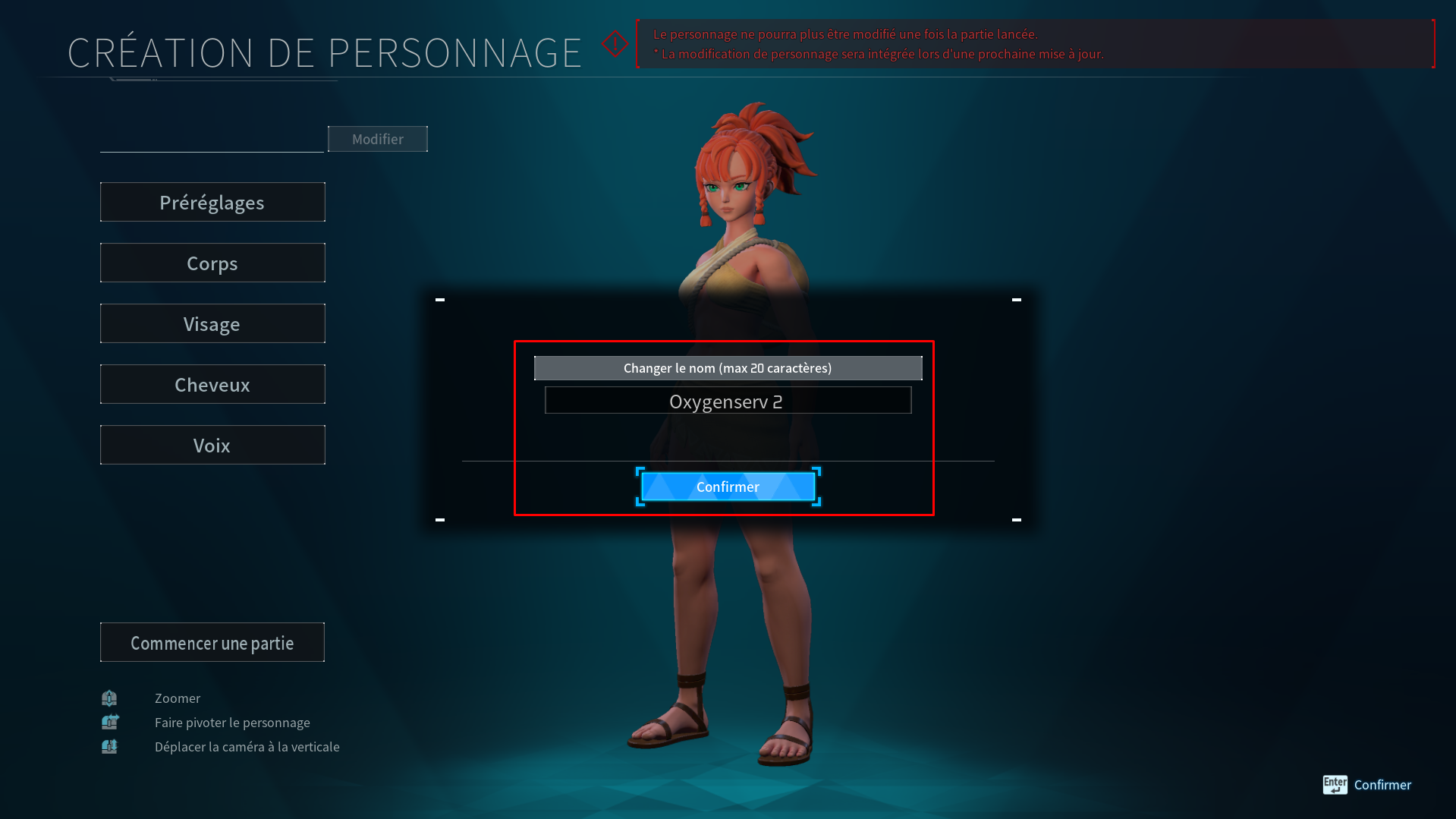
**Start the Linux server and create a temporary character**
Start the Linux server.
Log in to the game.
Create a new character (temporary).
{% hint style="success" %}
At this stage, the map should be correct.
We will now migrate the players.
{% endhint %}
{% endstep %}
{% step %}
**Download the updated server files (Linux side)**
Turn off the server.
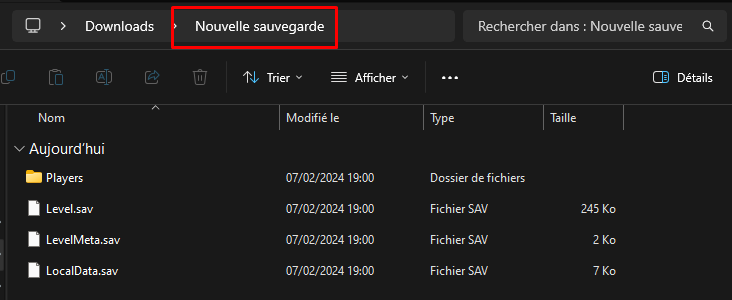
Download the folder:
`Pal/Saved/SaveGames/0/XXXXXXXXXXXXXXXXXXXXXXXXXXXXXXXX/`
Put it in a new folder on your PC.
{% hint style="success" %}
In `players`, you will see a new file `.sav`.
This is the temporary character from the Linux server.
{% endhint %}
{% endstep %}
{% step %}
**Migrate the players (Windows → Linux)**
Download the tool **palworld-host-save-fix** :
{% hint style="info" %}
Windows Defender / an antivirus may block it.
Verify the source, then decide according to your security policy.
{% endhint %}
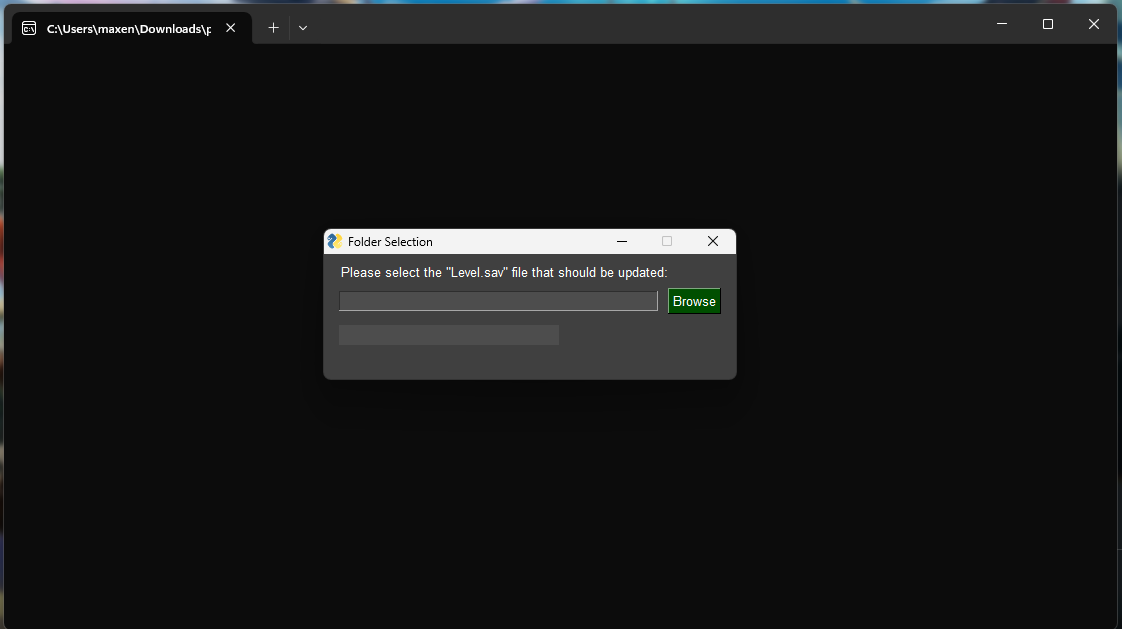
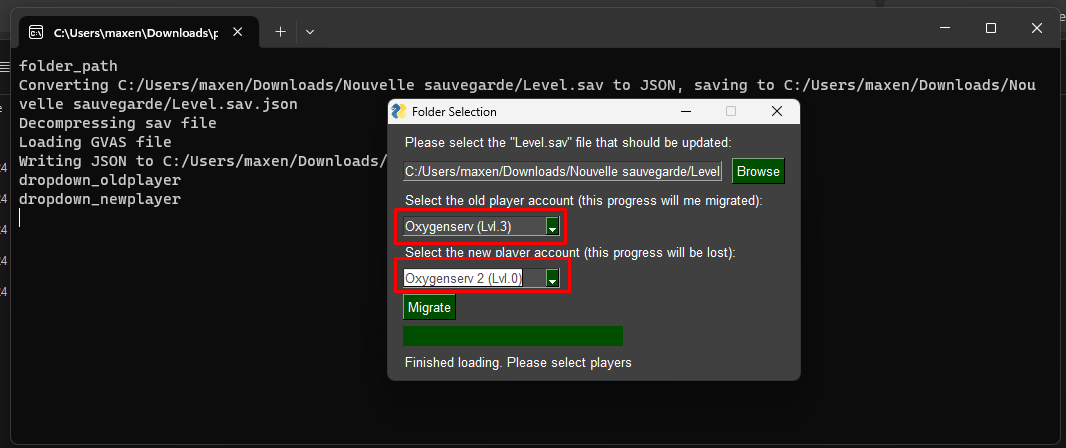
Open the application.
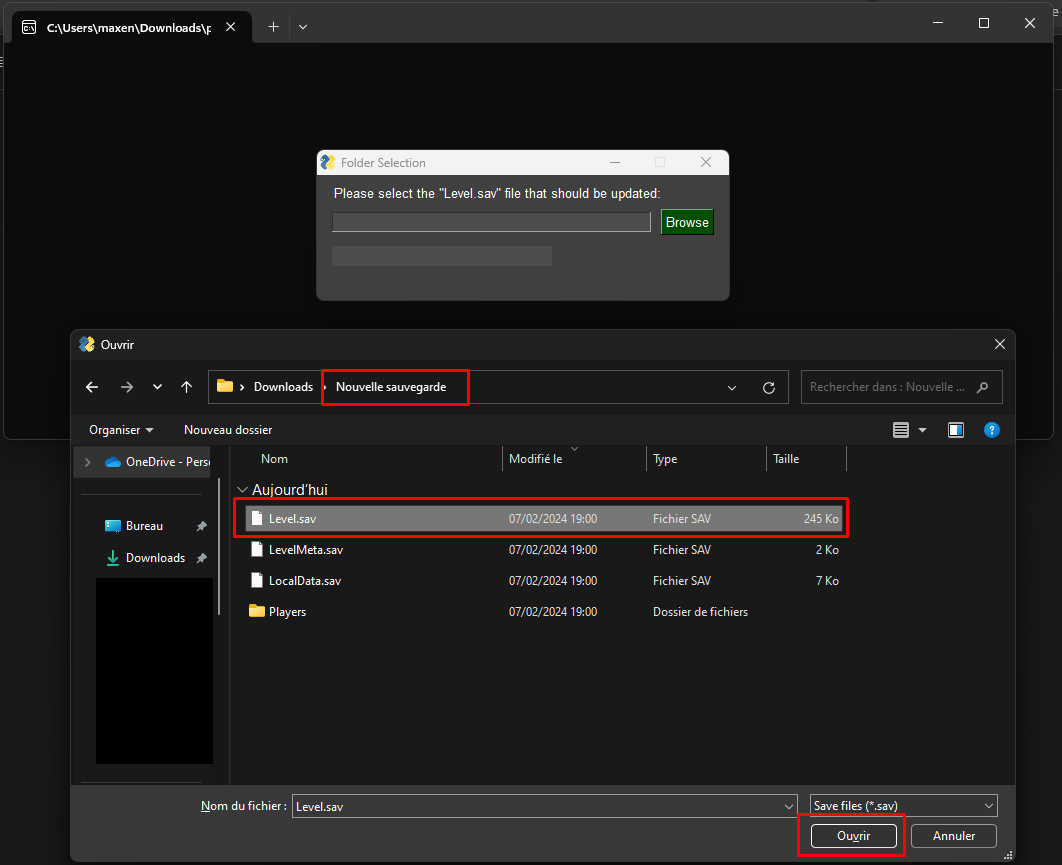
Click on **Browse**.
Select `Level.sav` in the folder you just downloaded.
On the next screen:
* List 1: select the “old” player (Windows).
* List 2: select the temporary player (Linux, level 0).
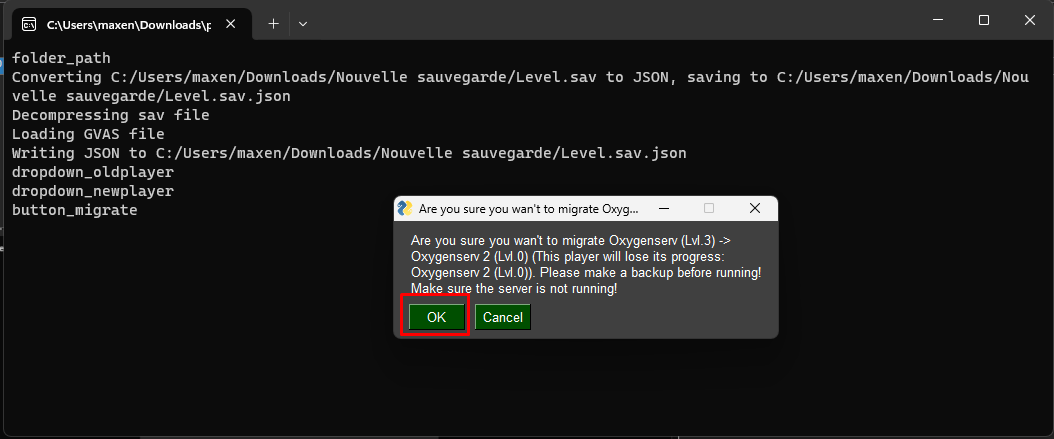
Click on **Migrate**.
Confirm the confirmation.
{% endstep %}
{% step %}
**Re-upload the converted files to the Linux server**
Send the modified files back to:
`Pal/Saved/SaveGames/0/XXXXXXXXXXXXXXXXXXXXXXXXXXXXXXXX/`
Restart the server.
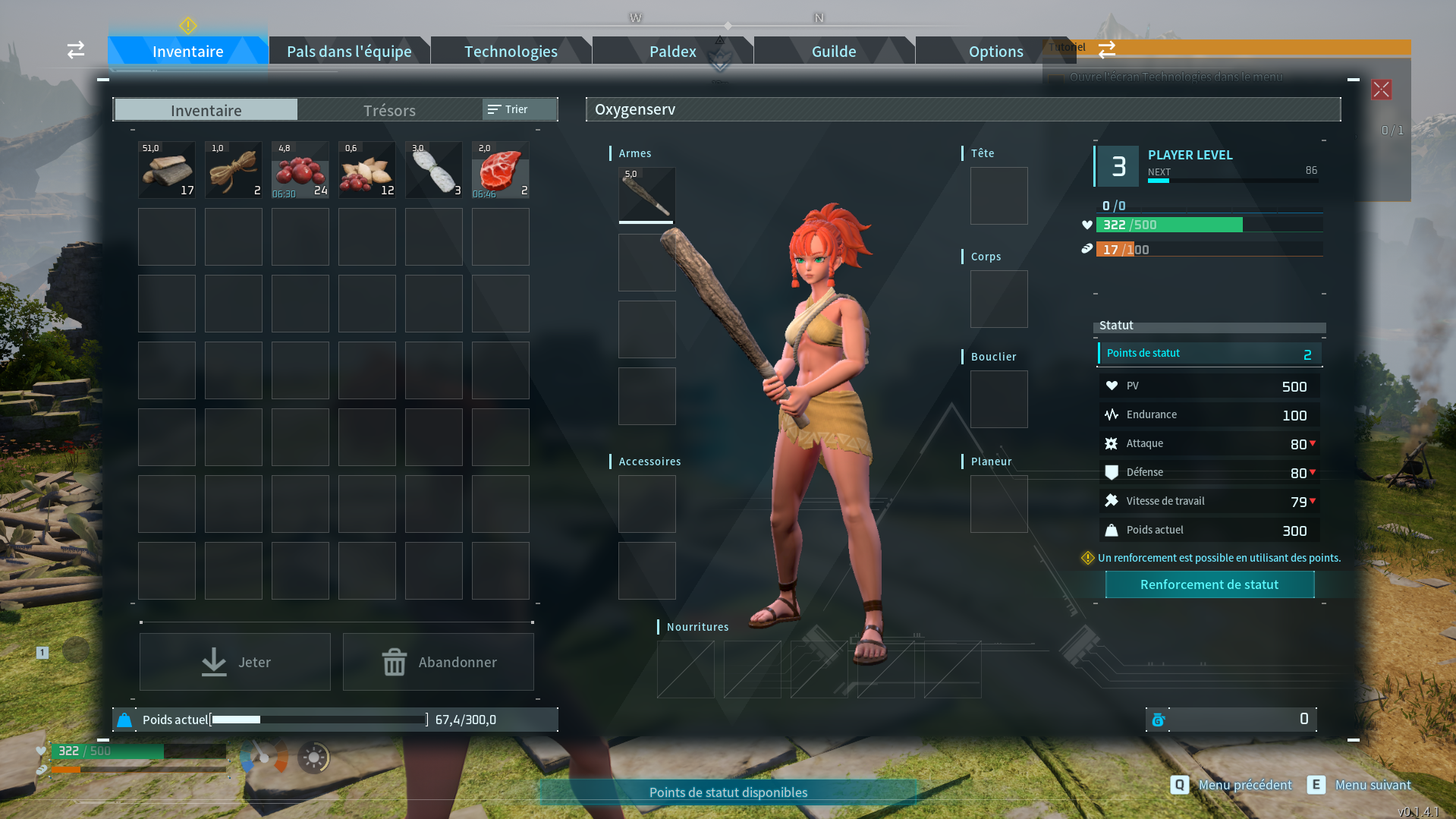
Log back into the game.
{% hint style="success" %}
Windows backup migrated to Linux.
{% endhint %}
{% endstep %}
{% endstepper %}
### Official resource
If you want the procedure maintained by the tool:
{% embed url="" %}
### Common issues
#### The server starts on a new map
* Check the folder `.../SaveGames/0/<32-characters>/`.
* Copy the contents, not the parent folder.
* Stop the server during the upload.
#### Players no longer have their progress
* The players' migration was not done.
* The wrong pair “old player” → “temporary player” was chosen.
#### The tool is blocked by Windows / antivirus
* Download only from the GitHub link.
* Scan the file if necessary.
### FAQ
#### Do I have to migrate all players?
Yes. Each player has a file `.sav` in `players`.
#### Why avoid `WorldOption.sav` ?
This file can overwrite the server settings.